Numerous applications are available for building a website, making it challenging to choose the right one. Wouldn't it be great if you could see how a website would appear before committing to an installation? This guide uses WordPress as an example to explore how to utilize Softaculous' demo feature.
STEP 1: Log in to cPanel.
There are two methods to log into your cPanel.
- Method 1: Log in to your cPanel directly.
- Method 2: Log in to your cPanel through your Customer Portal.
Through your Customer Portal;
- Log in to your Customer Portal.
- Click on "Log in to cPanel".
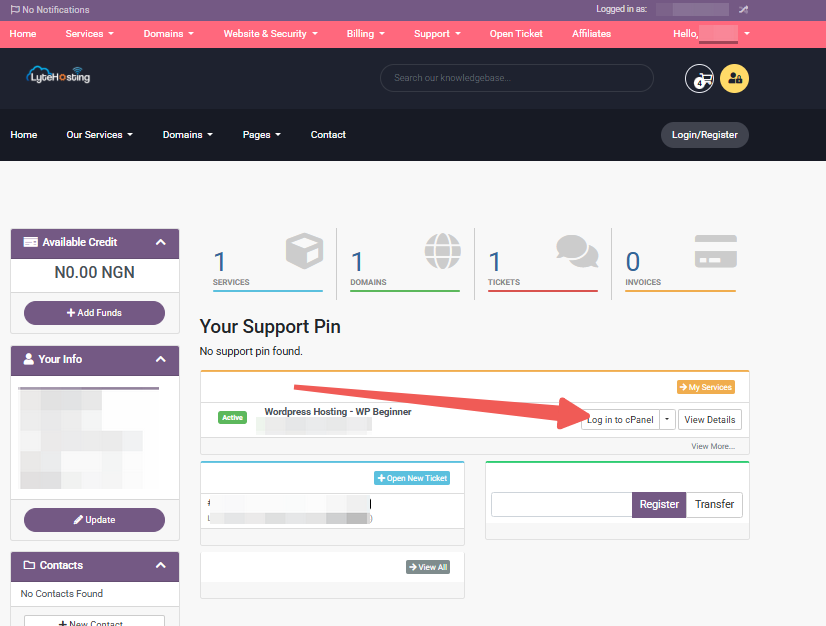
- Method 3: Log in using the details sent to your Email.
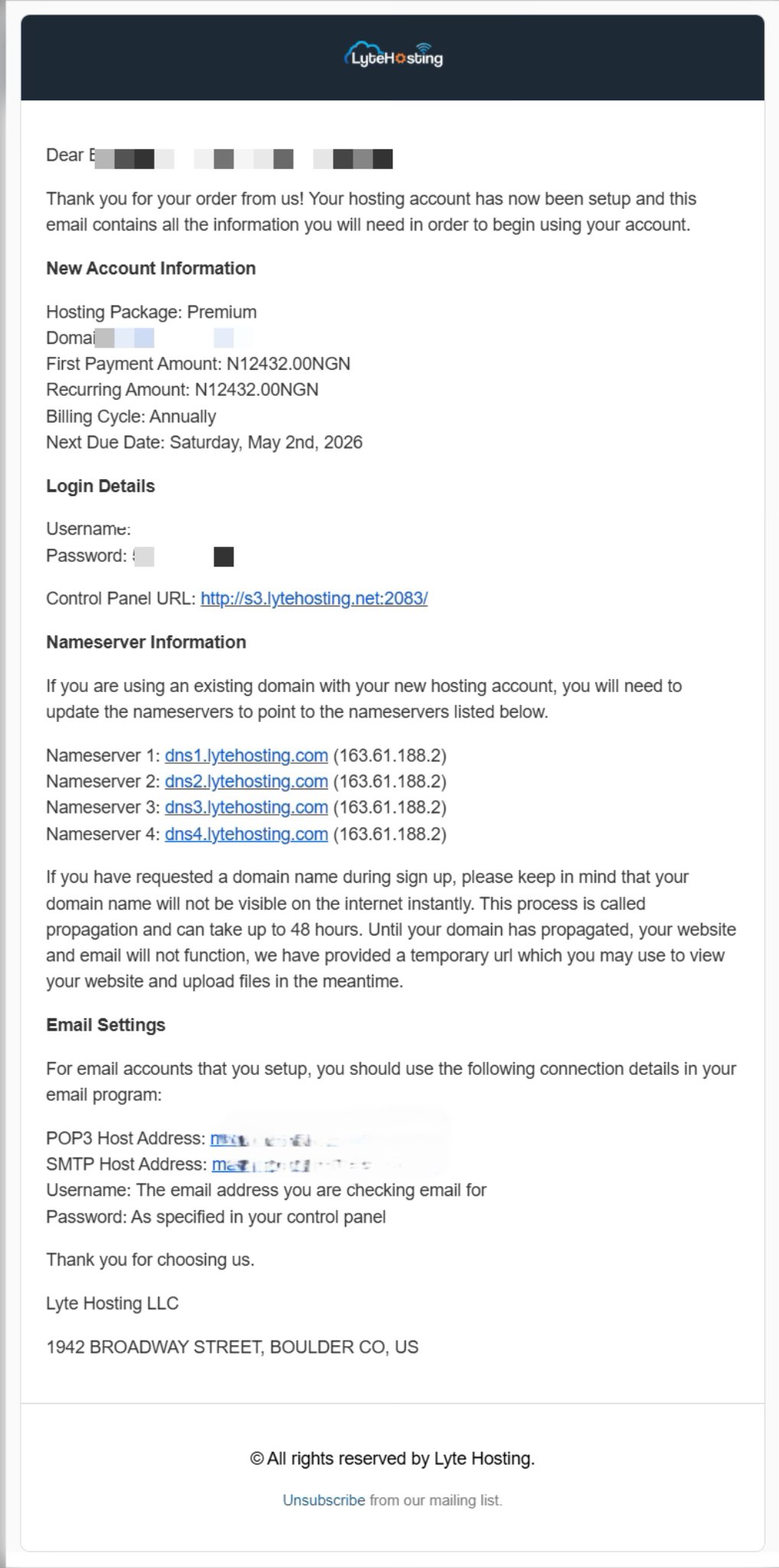
Through your Email;
- When you purchase a hosting plan, your cPanel login details (including username, password, and cPanel URL) are automatically sent to your registered email address. Simply check your inbox (or spam folder), locate the email, and use the provided credentials to access your cPanel.
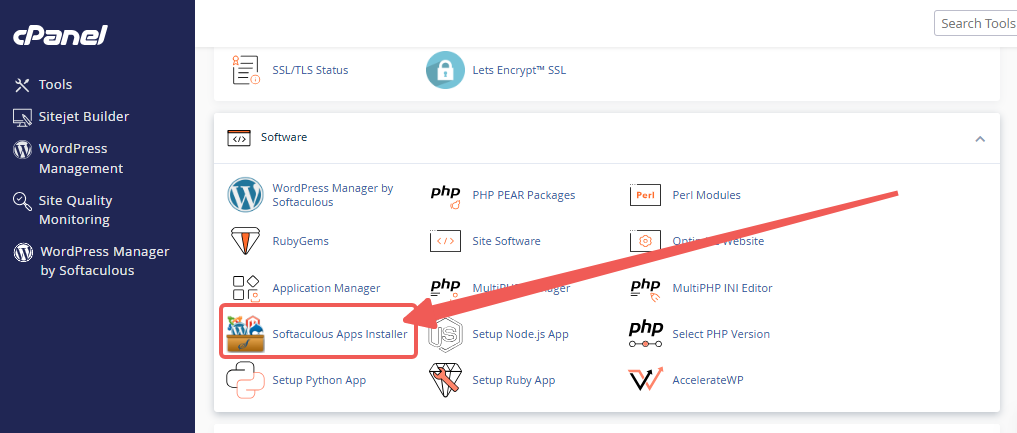
STEP 2: Locate the Software section and click on Softaculous Apps Installer.
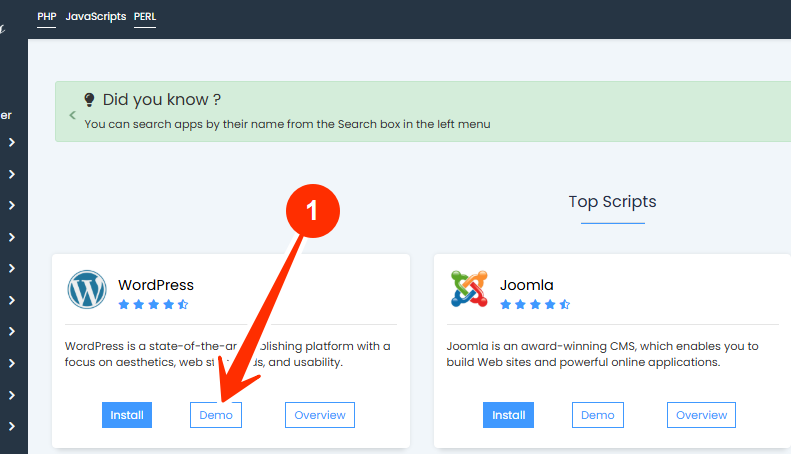
STEP 3: On the script’s page, click the Demo tab.
STEP 4: Softaculous will then load a demo version of the script.
Once the process is complete, the page will display the script’s live demo.