WordPress automatically saves a new revision every time you update a post or page. While this feature helps recover lost content, it can also lead to database clutter and slower performance, especially on busy websites.
If your database stores hundreds or even thousands of post revisions, it can affect your site’s speed and backup size. Fortunately, you can easily limit the number of revisions WordPress stores.
In this article, you’ll learn how to limit, disable, or delete post revisions to keep your website running efficiently.
What Are Post Revisions in WordPress?
Post revisions are saved versions of your content that WordPress creates automatically as you edit. Each time you click Update or Save Draft, WordPress stores a snapshot of that post in your database.
For example, if you edit a single article 20 times, WordPress will store 20 copies of it, which can take up significant database space over time.
Why You Should Limit Post Revisions
While revisions are helpful, they can become a problem when they accumulate. Some reasons to limit them include:
- Reduced database size: Fewer revisions mean smaller and faster databases.
- Improved performance: A lighter database leads to quicker query responses.
- Faster backups and restores: Smaller data size makes site backups and restores quicker.
- Better resource usage: Saves storage and reduces strain on shared hosting environments.
How to Limit Post Revisions in WordPress
You can control the number of revisions WordPress keeps by editing a simple configuration file.
1. Limit Revisions via wp-config.php
The easiest and most common way to set a limit is through your wp-config.php file.
- Log in to your hosting account or use an FTP client.
- Locate the wp-config.php file in your site’s root directory (usually /public_html), and click on Edit.
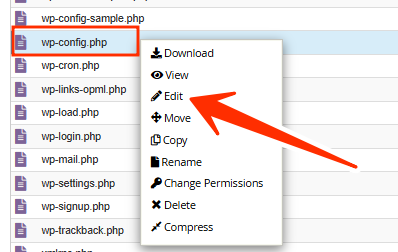
- Open the file in a text editor.
- Add the following line anywhere above this comment:
/* That's all, stop editing! Happy publishing. */
- Then insert:
define('WP_POST_REVISIONS', 5);
- This tells WordPress to keep only 5 revisions per post.
- Click on Save Changes.
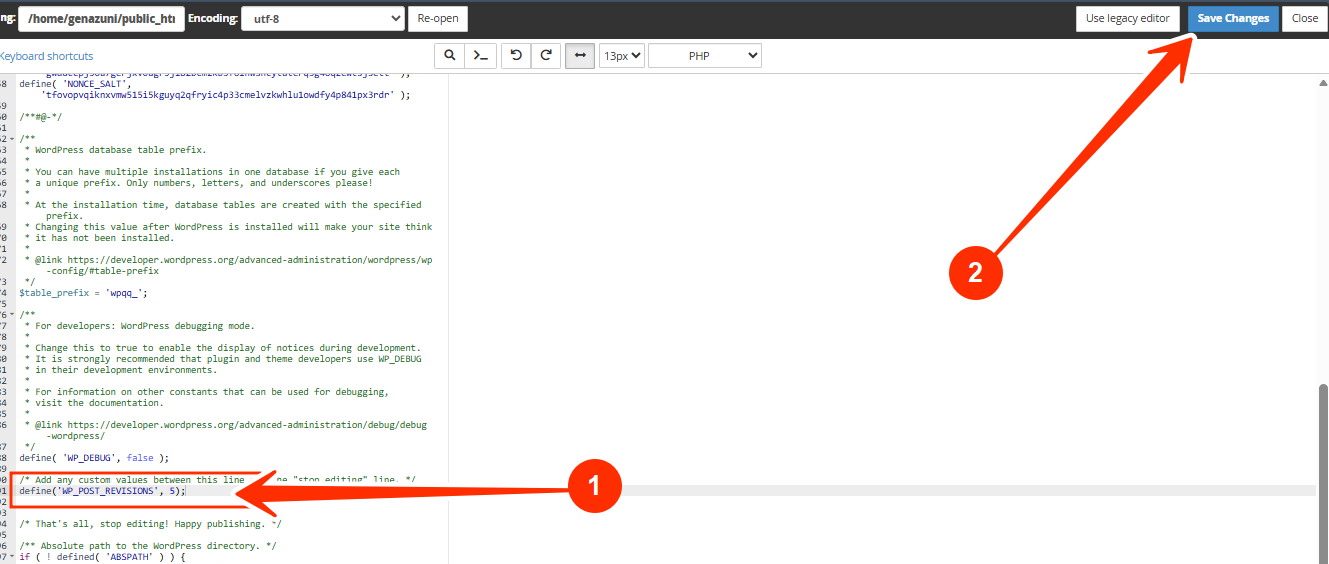
Tip: You can change the number “5” to any value you prefer.
2. Disable Post Revisions Completely
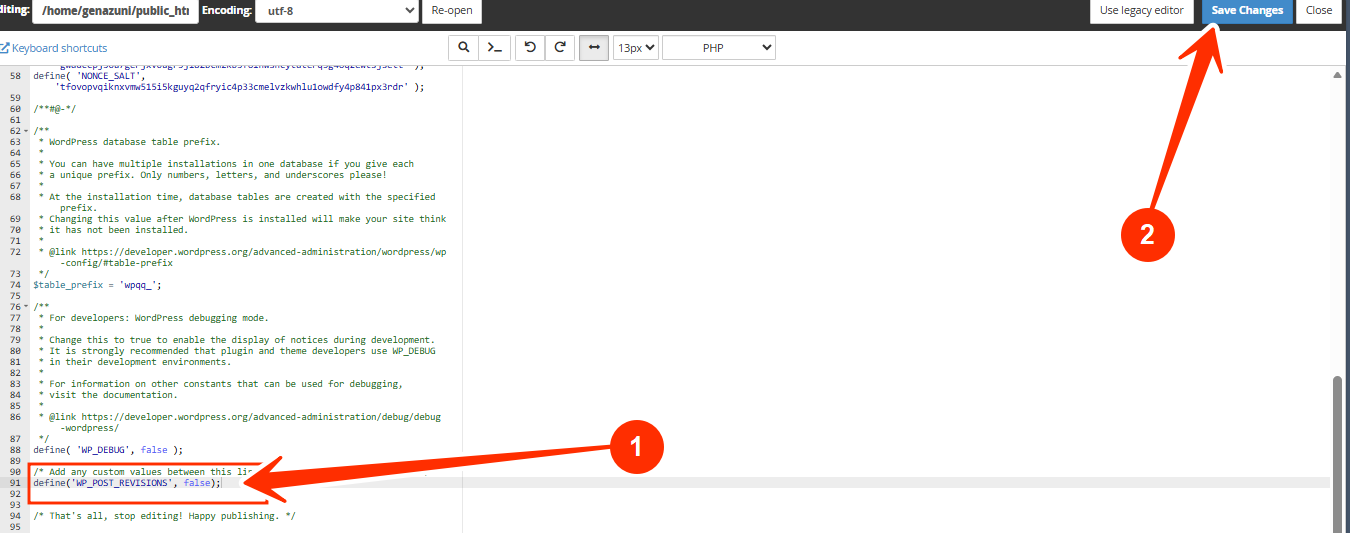
If you don’t need post revisions at all, you can disable them entirely by adding this line instead:
define('WP_POST_REVISIONS', false);
However, this is not recommended for most users, since revisions are useful for restoring lost changes during editing.
3. Delete Existing Revisions from the Database
Limiting future revisions won’t delete the old ones already stored in your database. To remove them:
- Use a plugin like WP-Optimize or Advanced Database Cleaner.
- These plugins safely clean up old revisions, drafts, and transients to free up space.
Alternatively, advanced users can delete them manually using a SQL query in phpMyAdmin:
DELETE FROM wp_posts WHERE post_type = "revision";
Always back up your database before running manual SQL queries.
4. Use a Plugin to Manage Revisions
If you prefer not to edit files manually, you can manage revisions through plugins such as:
- WP Revisions Control
- Perfmatters
- WP-Optimize
These tools let you set revision limits directly from the WordPress dashboard and clean up old revisions with one click.
Recommended Revision Limit:
For most sites, keeping 3 to 5 revisions per post is ideal. It provides enough history to recover older content while keeping your database clean and optimized.
Frequently Asked Questions (FAQs)
Q: What is the default post revision limit in WordPress?
By default, WordPress does not limit revisions, it saves all versions unless you specify otherwise.
Q: Will limiting revisions delete existing ones?
No, setting a limit only affects new revisions. You’ll need to manually delete older ones.
Q: Can I disable revisions for specific post types?
Yes, developers can disable revisions for certain post types by adding custom code in their theme’s functions.php file.
Q: Is it safe to delete post revisions?
Yes. Deleting revisions will not affect your live content, it only removes old versions stored in the database.
If you need assistance editing your files or optimizing your database, kindly reach out to our support team.