Having your scripts updated is one of the best ways to secure your website and ensure smooth performance. To save time and reduce manual work, LyteHosting allows you to enable the Auto Upgrade feature in Softaculous. With this option, your scripts will be automatically updated via CRON as soon as a new version becomes available.
NOTE:
- Auto Upgrade is available in Softaculous version 4.2.1 and higher.
- This feature currently supports selected scripts, and more will be added over time.
Enable Auto Upgrade for New Installations
You can set up auto upgrades when installing a new script in Softaculous:
STEP 1: Log in to cPanel.
There are three methods to log into your cPanel.
- Method 1: Log in to your cPanel directly.
- Method 2: Log in to your cPanel through your Customer Portal.
Through your Customer Portal;
- Log in to your Customer Portal.
- Click on "Log in to cPanel".
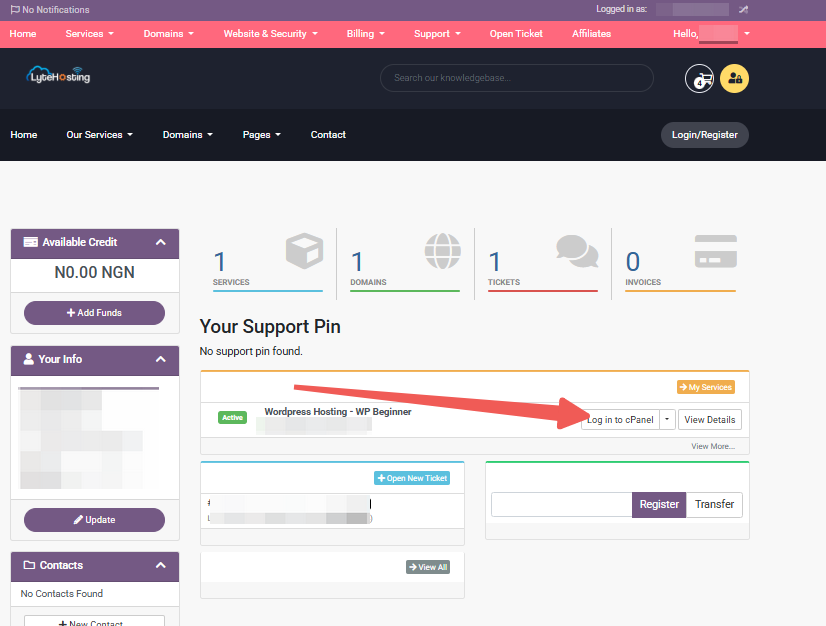
- Method 3: Log in using the details sent to your Email.
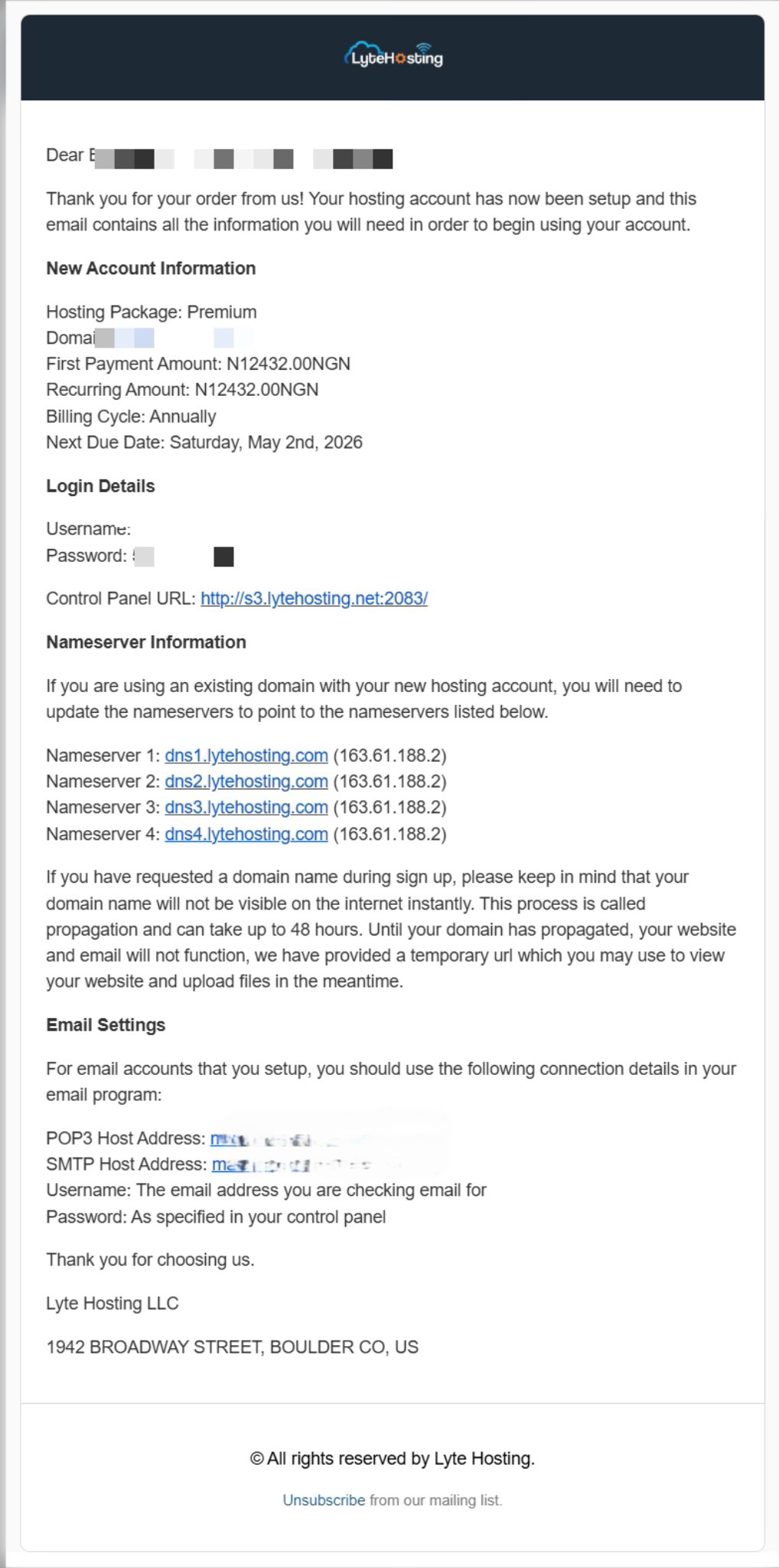
Through your Email;
- When you purchase a hosting plan, your cPanel login details (including username, password, and cPanel URL) are automatically sent to your registered email address. Simply check your inbox (or spam folder), locate the email, and use the provided credentials to access your cPanel.
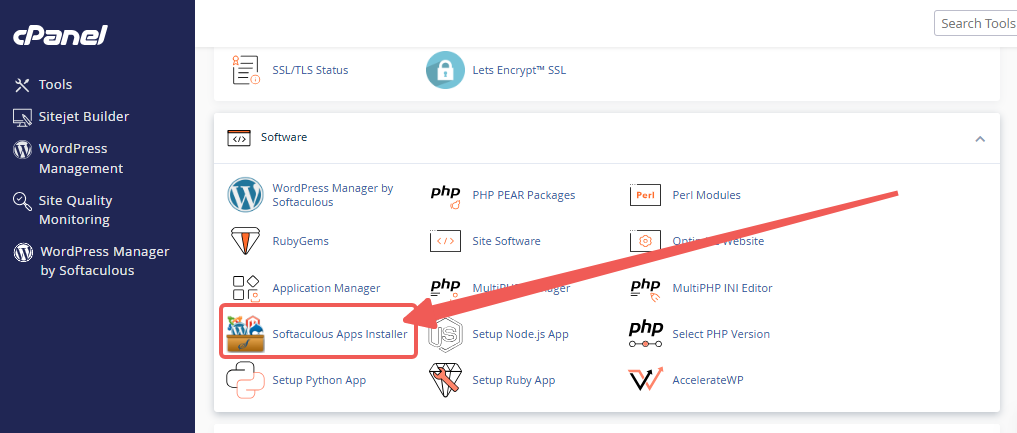
STEP 2: In the Software section, click on Softaculous Apps Installer.
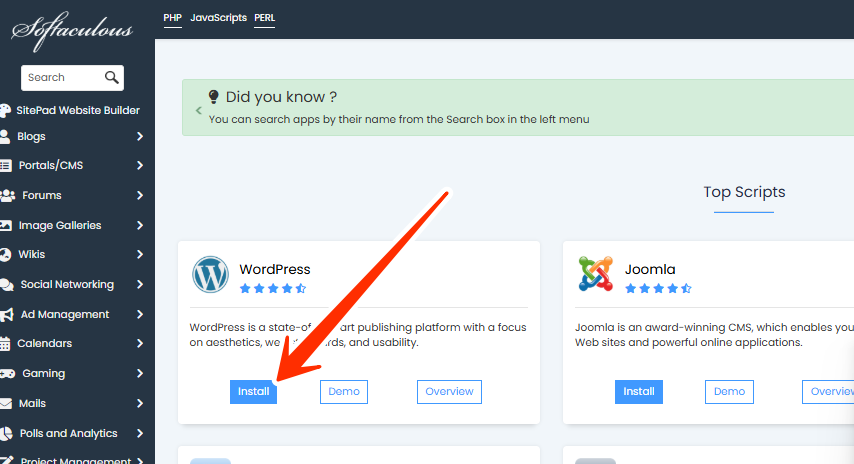
STEP 3: Choose the script you want to install.
STEP 4: Click on the Install tab.
STEP 5: Fill in the installation details.
STEP 6: Select the Auto Upgrade checkbox.
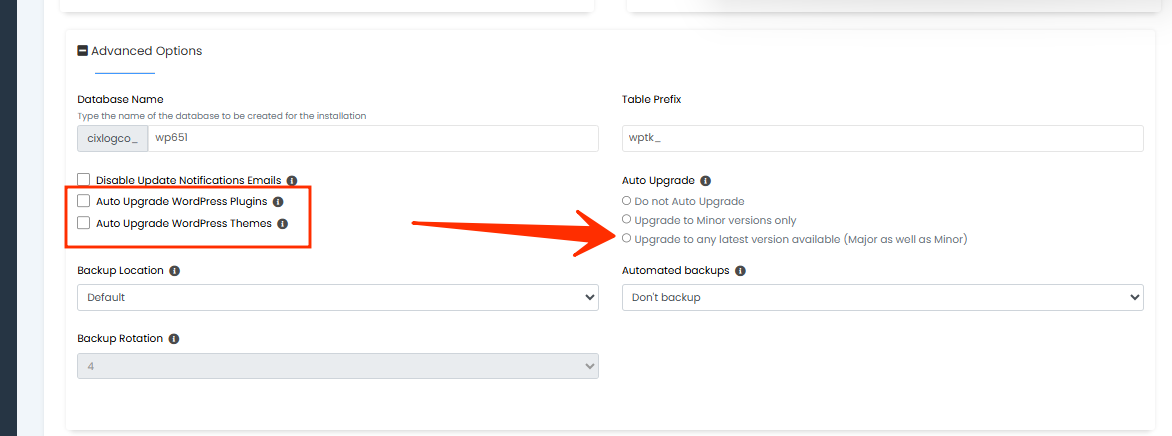
That’s it! Auto Upgrade is now enabled for your new installation. You can verify this by checking the installation details screen. Your installation will be updated automatically whenever a new version is released.
Enable Auto Upgrade for Existing Installations
You can also enable auto upgrades for scripts that are already installed:
STEP 1: Go to the Edit Installation page in Softaculous.
STEP 2: Select the Auto Upgrade checkbox.
STEP 3: Click on the Save Installation Details button.
Auto Upgrade is now enabled for your existing installation. If a new version is already available, it will be applied during the next Softaculous CRON run (every 24 hours). If your installation is already updated, future updates will be applied automatically as soon as they are released.
Frequently Asked Questions (FAQs)
Q: What is the benefit of enabling Auto Upgrade?
It saves you time and effort by ensuring your scripts are always up to date with the latest versions, reducing security risks and compatibility issues.
Q: Will Auto Upgrade affect my website content or design?
No, your website’s content and design remain unchanged. However, we recommend testing custom themes or plugins in a staging environment to avoid conflicts.
Q: Can I disable Auto Upgrade later?
Yes, you can return to the installation settings in Softaculous and uncheck the Auto Upgrade option at any time.
Q: How often does Softaculous check for updates?
Softaculous CRON runs every 24 hours. If an update is available, your installation will be upgraded automatically during that time.
Q: What should I do before enabling Auto Upgrade?
Always create a backup before enabling this feature. While rare, updates may cause conflicts with third-party plugins or themes.