The message “Briefly unavailable for scheduled maintenance. Check back in a minute” on your website can be confusing and alarming, especially if it stays longer than expected.
This error usually appears after you attempt to update WordPress, a plugin, or a theme. While it’s normal for WordPress to briefly enter maintenance mode during updates, the problem occurs when the process does not complete properly. When that happens, your site remains stuck in maintenance mode and becomes inaccessible to visitors.
This article explains what causes this issue, why it happens, and the correct way to fix it without risking your website.
Causes of this Error
When WordPress starts an update, it automatically creates a temporary file called:
.maintenance
This file tells WordPress to display a maintenance message to visitors while updates are running. Normally, WordPress deletes this file once the update finishes.
However, problems occur when:
- The update process is interrupted
- Your internet disconnects during the update
- The browser tab is closed midway
- The server times out
- Your hosting briefly goes offline
When any of these happen, WordPress fails to delete the .maintenance file, and your website remains stuck showing the maintenance message.
How This Error Affects Your Website
If not fixed quickly, this issue can:
- Make your website completely inaccessible to visitors
- Prevent customers from placing orders or contacting you
- Damage user trust
- Affect your SEO if search engines keep seeing the error page
- Cause drop in traffic if prolonged
That’s why it should be resolved as soon as possible.
How to Fix the Error
The most reliable solution is simply deleting the stuck .maintenance file. This file does not contain your website data, posts, or design. It only controls maintenance mode.
STEP 1: Log in to cPanel.
There are three methods to log into your cPanel.
- Method 1: Log in to your cPanel directly.
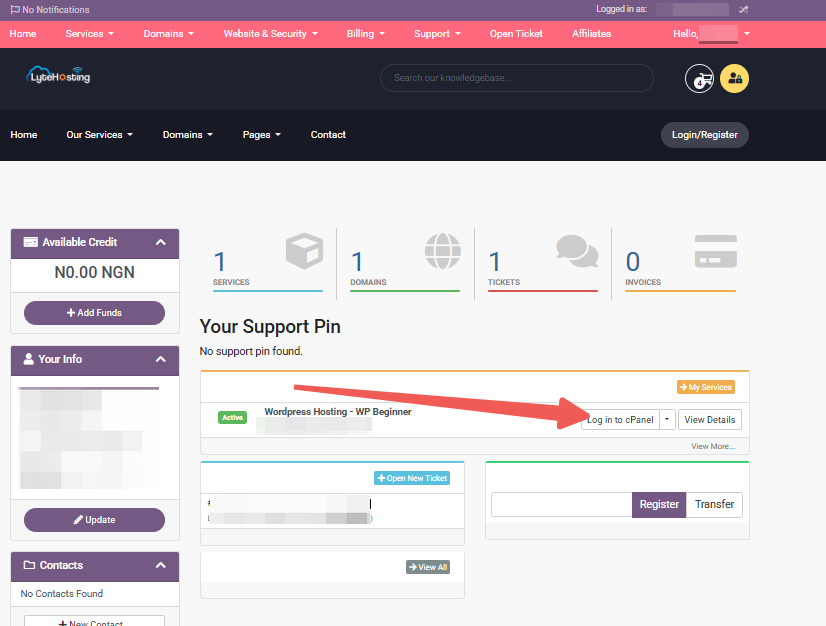
- Method 2: Log in to your cPanel through your Customer Portal.
Through your Customer Portal;
- Log in to your Customer Portal.
- Click on "Log in to cPanel".
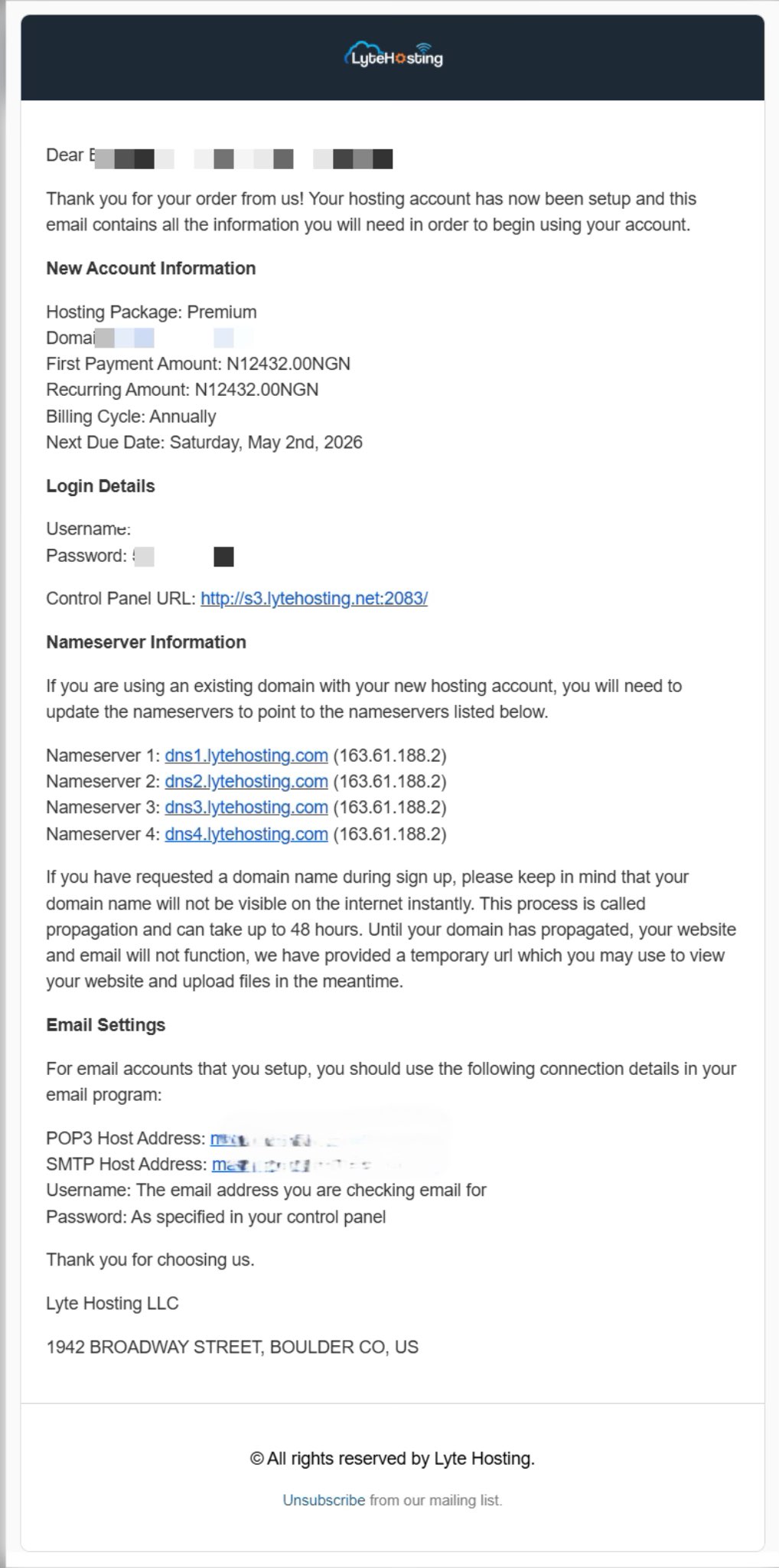
- Method 3: Log in using the details sent to your Email.
Through your Email;
- When you purchase a hosting plan, your cPanel login details (including username, password, and cPanel URL) are automatically sent to your registered email address. Simply check your inbox (or spam folder), locate the email, and use the provided credentials to access your cPanel.
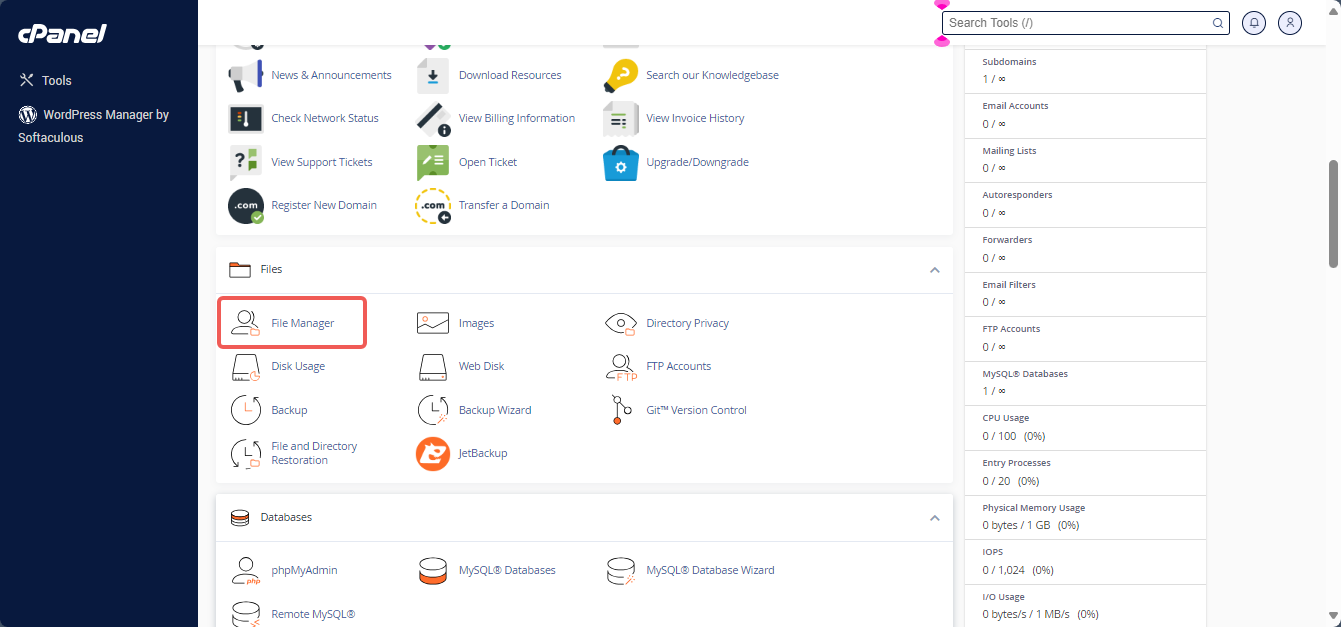
STEP 2: In the Files section, click on File Manager.
STEP 3: Navigate to your website’s main directory (usually public_html).
STEP 4: Enable Show Hidden Files (this is important because the file starts with a dot).
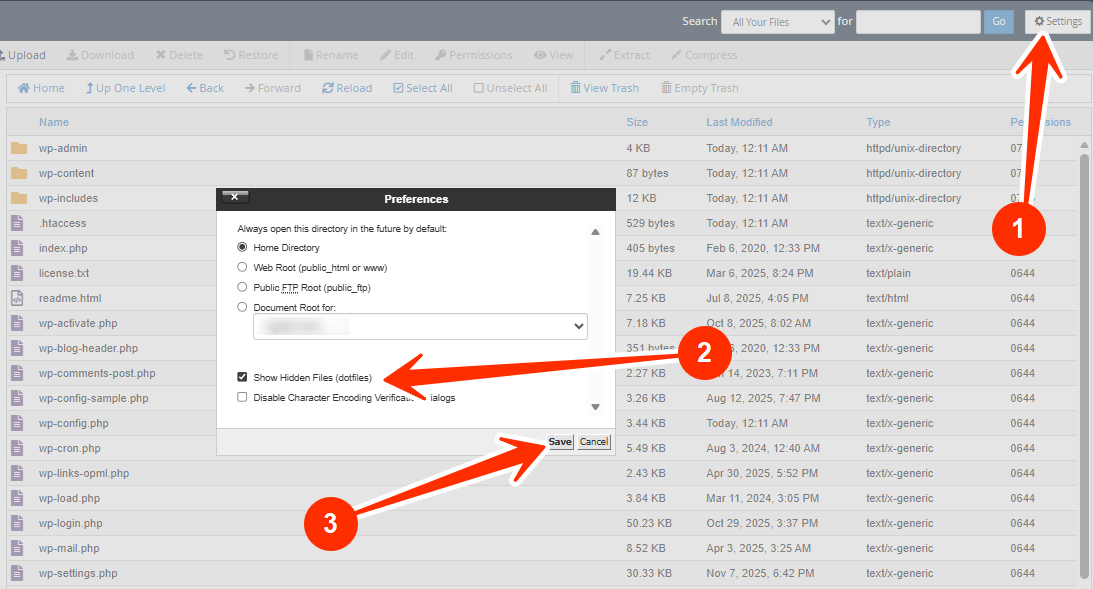
STEP 5: Look for a file named: .maintenance.
STEP 6: Right-click on the file and click Delete.
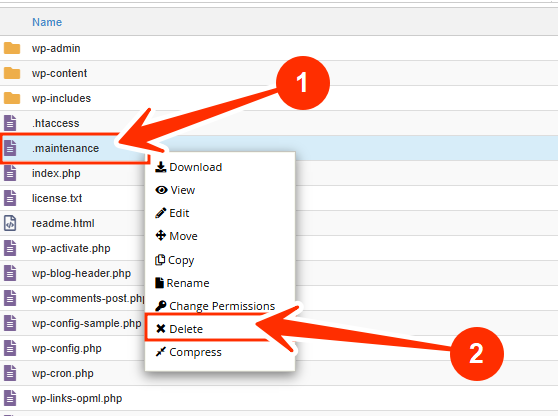
STEP 7: Refresh your website in an incognito window.
Your website should now load normally.
What If You Can’t See the File?
If you don’t see the .maintenance file:
- Ensure hidden files are enabled in File Manager.
- Refresh your File Manager page.
- Clear your browser cache and check again.
- Make sure you are inside the correct website folder (public_html or the folder where WordPress is installed).
NOTE:
- Deleting the .maintenance file will not delete your content, design, or settings.
- This fix is safe and commonly used by hosting support teams.
- The error does not mean your website is hacked or broken. It’s usually just a stuck update process.
How to Prevent This Error From Happening Again
To reduce the chances of this happening in the future:
- Always allow WordPress updates to finish before closing your browser
- Avoid updating during very slow internet connections
- Do not run multiple updates at once
- Avoid refreshing your page while updates are in progress
- Make sure you have enough server resources to handle updates
Frequently Asked Questions (FAQs)
Q: Why did my site stay on maintenance mode for hours?
This happens when the .maintenance file is not removed after a failed update. WordPress doesn’t automatically clear it unless the update process finishes successfully.
Q: Will this error damage my website permanently?
No. It does not damage your files, database, or content. It only prevents visitors from accessing the site temporarily.
Q: Is this error caused by hacking or malware?
No. This error is not related to hacking. It is purely caused by an interrupted or incomplete update.
Q: Can this affect my Google ranking?
If left for a long time, yes. Search engines may temporarily reduce your site’s visibility due to poor uptime.
Q: What if my site still doesn't load after deleting the file?
This may mean the update process corrupted some files. In this case, kindly reach out to your hosting support team for deeper assistance.
Q: Does this happen only in WordPress?
Mostly yes. This error is specific to WordPress because of how it handles updates.
If you’re unsure about any of the steps, kindly reach out to your support team for assistance.