Managing your WordPress website starts with logging in to your admin dashboard, the command center where you can create content, install themes, configure plugins, and manage your site’s functionality. If your website is hosted on LyteHosting, there are several simple ways to sign in and start working on your site.
Below are three reliable methods you can use to access your WordPress dashboard.
Access WordPress via Softaculous Installer
If you originally installed WordPress using Softaculous, you can bypass manually entering your login details by accessing the admin area directly through the installer.
Here’s how to do it:
STEP 1: Log in to cPanel.
There are three methods to log into your cPanel.
- Method 1: Log in to your cPanel directly.
- Method 2: Log in to your cPanel through your Customer Portal.
Through your Customer Portal;
- Log in to your Customer Portal.
- Click on "Log in to cPanel".
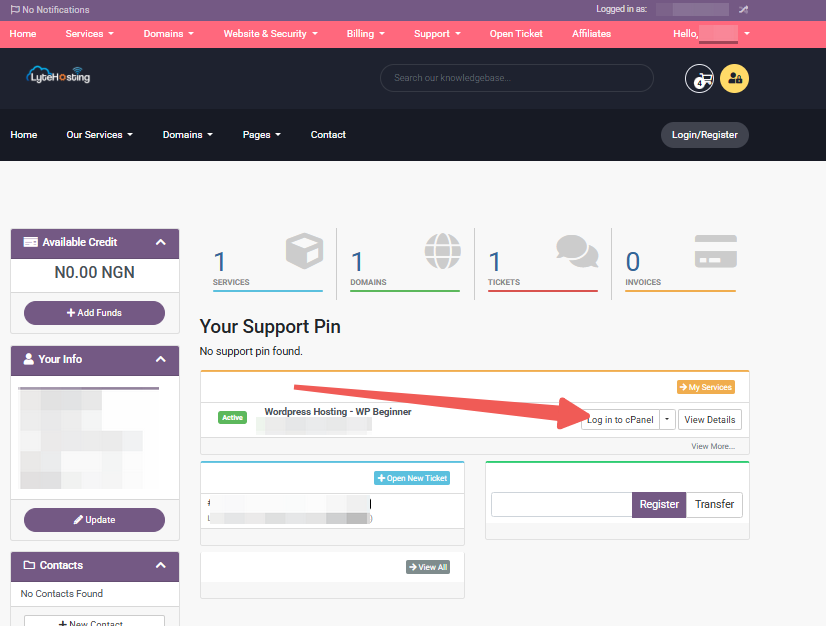
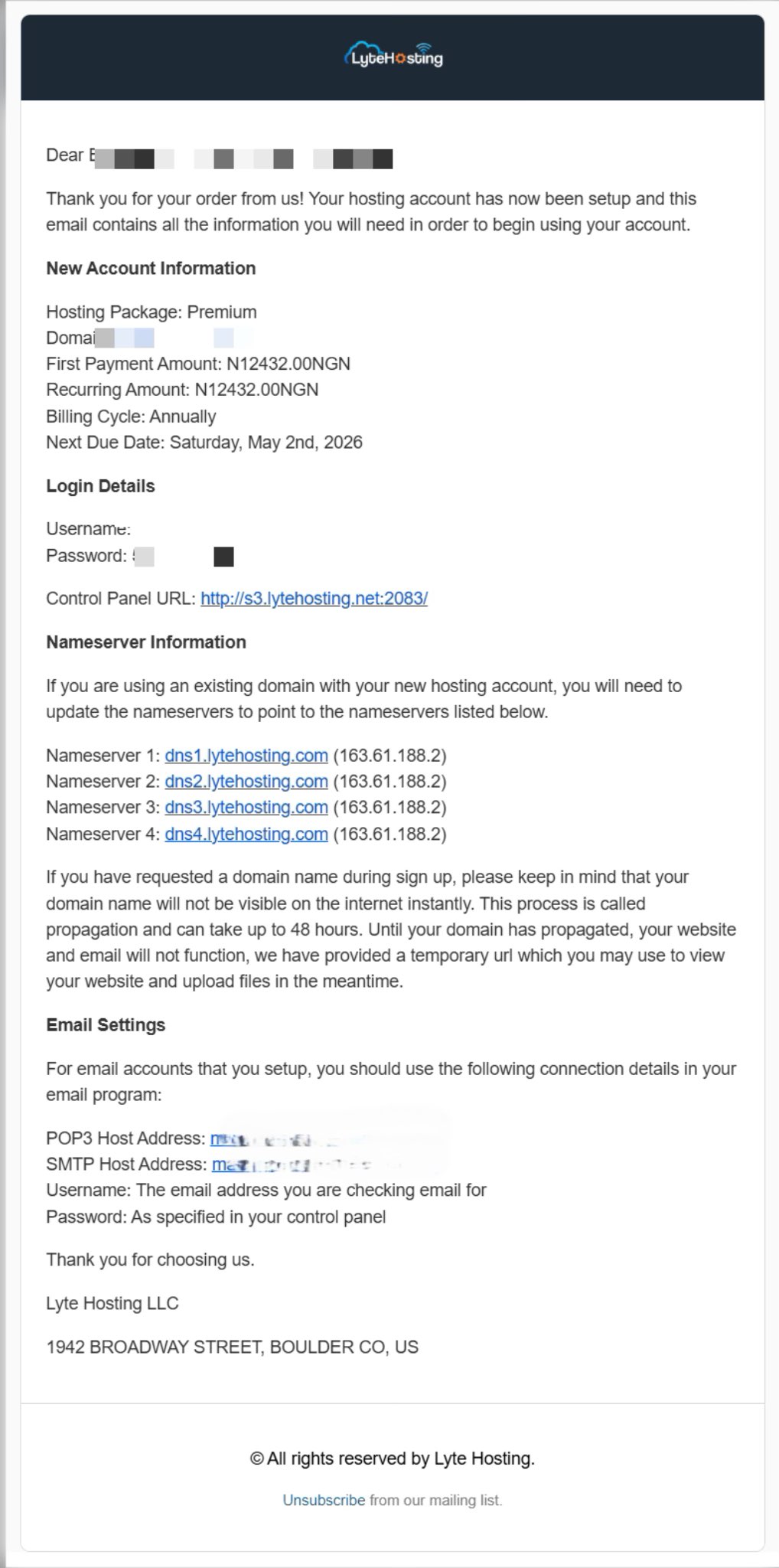
- Method 3: Log in using the details sent to your Email.
Through your Email;
- When you purchase a hosting plan, your cPanel login details (including username, password, and cPanel URL) are automatically sent to your registered email address. Simply check your inbox (or spam folder), locate the email, and use the provided credentials to access your cPanel.
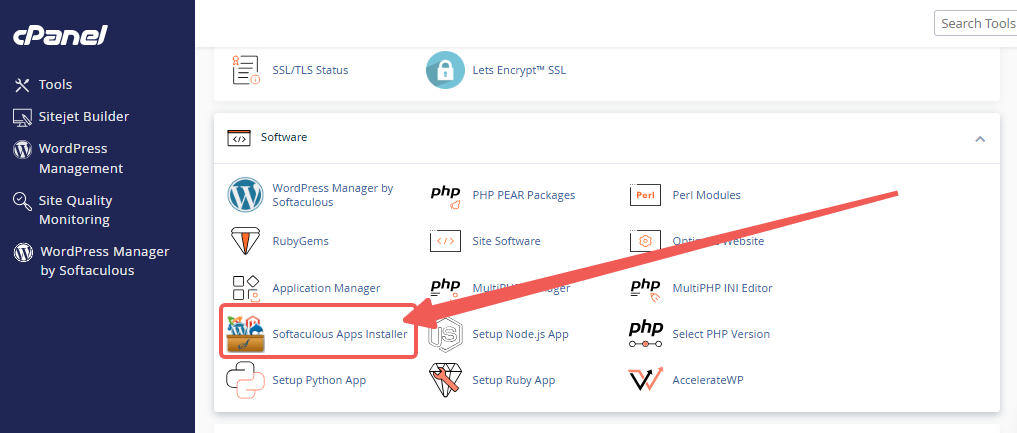
STEP 2: In the Software section, click on Softaculous Apps Installer.
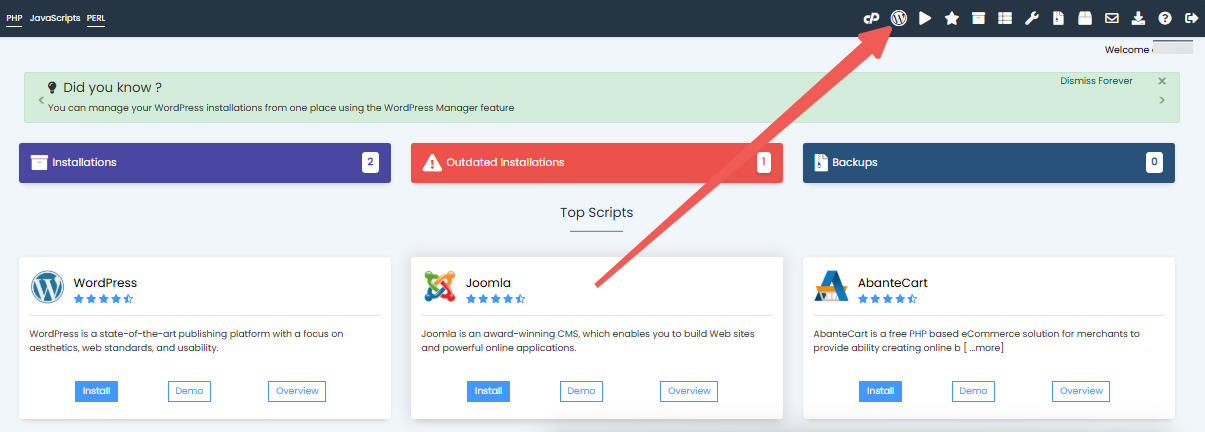
STEP 3: On the Softaculous page, click on the WordPress icon.
STEP 4: Find the WordPress site you want to open, then click Login.
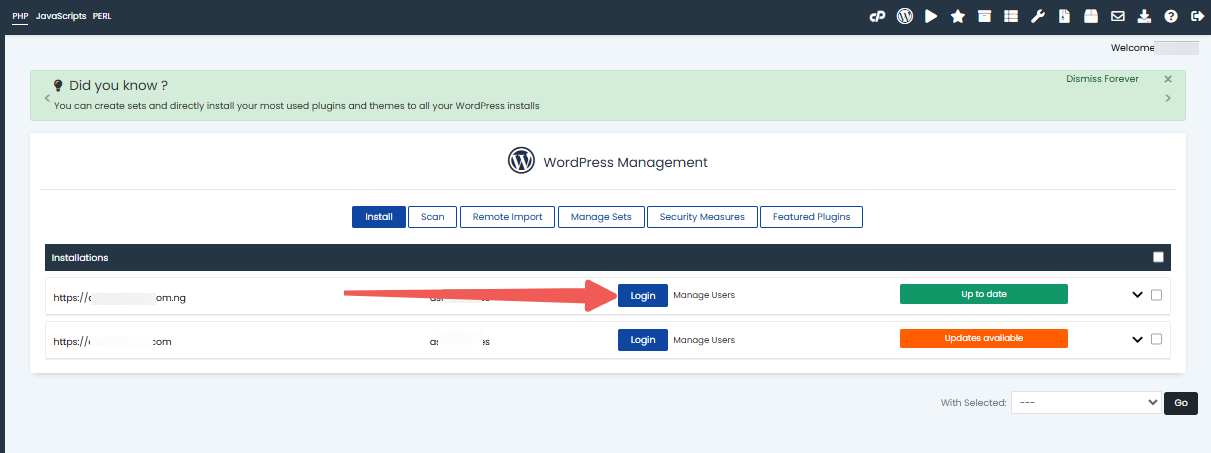
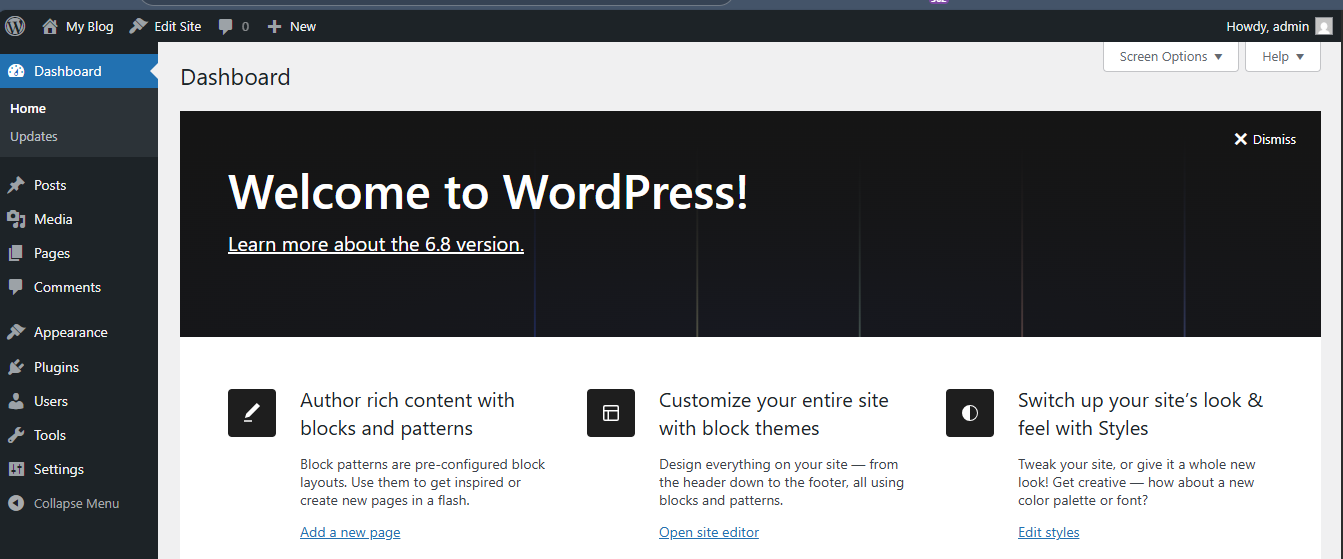
A new browser tab will open, and you’ll be automatically logged into your WordPress dashboard without typing in your login info.
If you set up WordPress manually or migrated it to LyteHosting, you can still install your site into Softaculous to take advantage of this login shortcut.
Direct Login Using the wp-admin URL
You don’t always need to access your LyteHosting portal or cPanel to log in. If you remember your WordPress login details, you can go straight to your dashboard using a direct URL.
For WordPress installed on your main domain:
- In your browser, go to:
http://yourdomain.com/wp-admin
For WordPress installed in a subdirectory:
- If your site was set up in a folder like "blog", then use:
http://yourdomain.com/blog/wp-admin
Replace "yourdomain.com" and "blog" with your actual domain name and the folder used during setup.
Whichever method you choose, LyteHosting provides multiple pathways to help you get into your WordPress dashboard quickly and securely. Whether you prefer the all-in-one access from your portal, the ease of Softaculous, or the straightforward wp-admin route, managing your site is just a few clicks away.