Getting locked out of your WordPress dashboard is frustrating, especially when it was caused by a plugin. This usually happens when a new plugin, an update, or a plugin conflict breaks your website or blocks access to wp-admin.
Since you can’t log in to disable the plugin normally, you need another safe way to turn off all plugins and regain access to your site.
This article shows you the safest way to disable all WordPress plugins directly from your hosting account.
Common Reasons Plugins Cause Lockouts
WordPress plugins can cause lockouts due to:
- Incompatible plugin updates
- Conflicts between multiple plugins
- Corrupt plugin files
- Fatal errors triggered by poorly coded plugins
- Server or PHP version conflicts
When this happens, your website may show errors like:
- White Screen of Death
- 500 Internal Server Error
- “There has been a critical error on this website”
- Or it may completely block wp-admin access
How Disabling All Plugins Helps
Disabling all plugins forces WordPress to load without any third-party code. This helps you:
- Confirm whether a plugin caused the issue
- Regain access to your WordPress dashboard
- Identify which plugin is responsible
This method is safe and does not delete any plugin files or settings.
STEP 1: Disable All Plugins Using File Manager
This is the most reliable method when you cannot access your WordPress admin. Click in the article below for more information on how to do that:
Once you log back into WordPress:
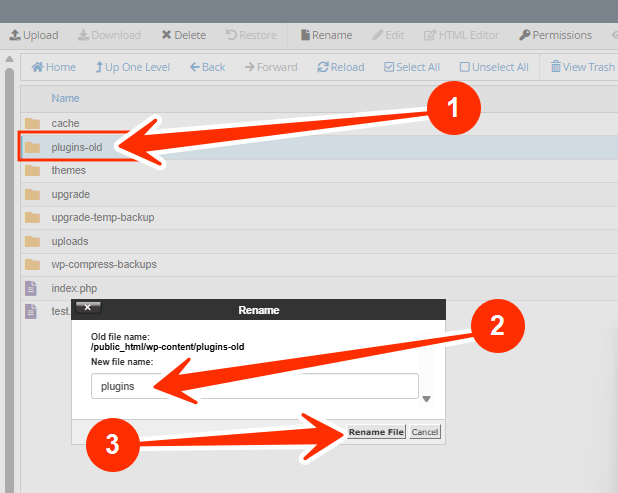
STEP 2: Go to File Manager again..
STEP 3: Rename plugins-old back to plugins.
STEP 4: Go to your WordPress dashboard, and click on Plugins.
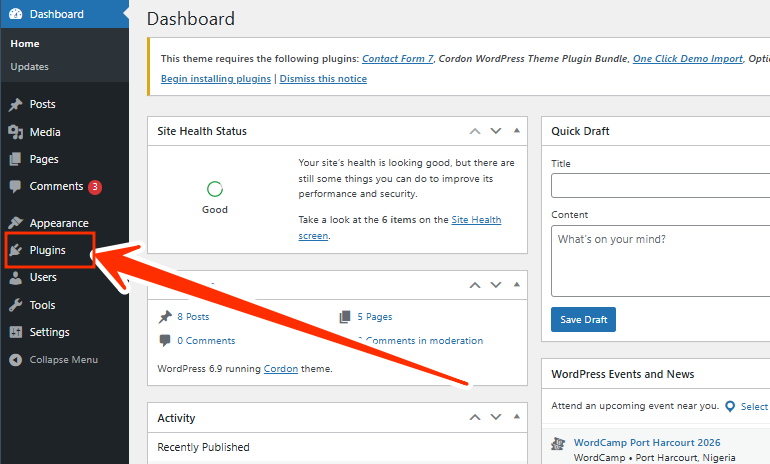
STEP 5: Activate plugins one by one, and refresh your site after each activation.
STEP 6: The plugin that breaks the site is the faulty one, deactivate or replace it.
NOTE:
- Renaming the plugins folder only disables plugins, it does not delete them.
- Your plugin settings will remain saved.
- This method is safe and reversible.
- Do not leave the folder renamed permanently.
How to Prevent Plugin Lockouts in the Future
To avoid this problem again:
- Always update plugins one at a time
- Avoid installing too many unnecessary plugins
- Use only well-reviewed and updated plugins
- Ensure your hosting environment meets plugin requirements
- Keep WordPress core updated regularly
Frequently Asked Questions (FAQs)
Q: Will disabling all plugins delete my plugin settings?
No. Renaming the folder only pauses them. Your settings remain saved.
Q: What if my site still doesn’t work after disabling plugins?
Then the issue might be caused by your theme or WordPress core, not plugins.
Q: Can I do this using FTP instead of File Manager?
Yes. The same steps apply. You just rename the plugins folder using your FTP client.
Q: Why did one plugin break my entire site?
Poorly coded or incompatible plugins can conflict with your WordPress version, theme, or PHP version.
Q: Is it safe to delete the plugins folder instead?
No. Renaming is safer because it allows you restore everything without losing files.
Q: Can this affect my content or posts?
No. Your posts, pages, and media are stored in your database and are not affected.
If you’re unable to access File Manager or still experience issues, kindly reach out to your support team for assistance.