When updating a WordPress plugin, theme, or core files, WordPress automatically enters maintenance mode. If something interrupts the update process, your website may get stuck showing this error:
“Briefly unavailable for scheduled maintenance. Check back in a minute.”
This article explains how to fix WordPress stuck in maintenance mode quickly and safely.
What Causes WordPress Maintenance Mode to Get Stuck?
This issue usually occurs due to:
- Interrupted plugin or theme update
- Slow or unstable internet connection during update
- Server timeout
- File permission errors
- Conflicts between plugins
When this happens, WordPress fails to exit maintenance mode properly.
METHOD 1: Delete the .maintenance File (Fastest Solution)
WordPress locks your site by creating a hidden file called .maintenance. Removing it restores your website.
STEP 1: Log in to cPanel.
There are three methods to log into your cPanel.
- Method 1: Log in to your cPanel directly.
- Method 2: Log in to your cPanel through your Customer Portal.
Through your Customer Portal;
- Log in to your Customer Portal.
- Click on "Log in to cPanel".

- Method 3: Log in using the details sent to your Email.
Through your Email;
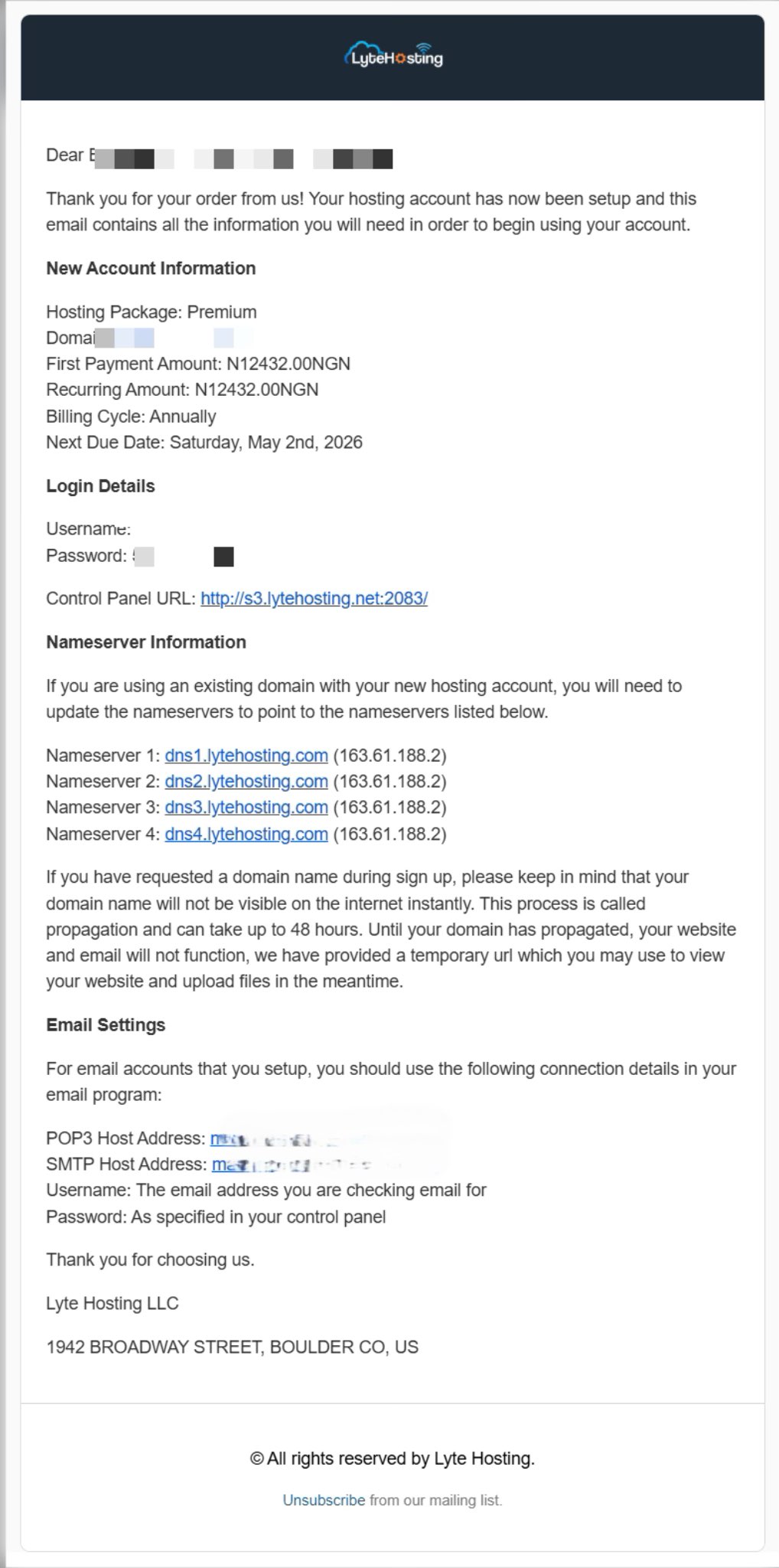
- When you purchase a hosting plan, your cPanel login details (including username, password, and cPanel URL) are automatically sent to your registered email address. Simply check your inbox (or spam folder), locate the email, and use the provided credentials to access your cPanel.
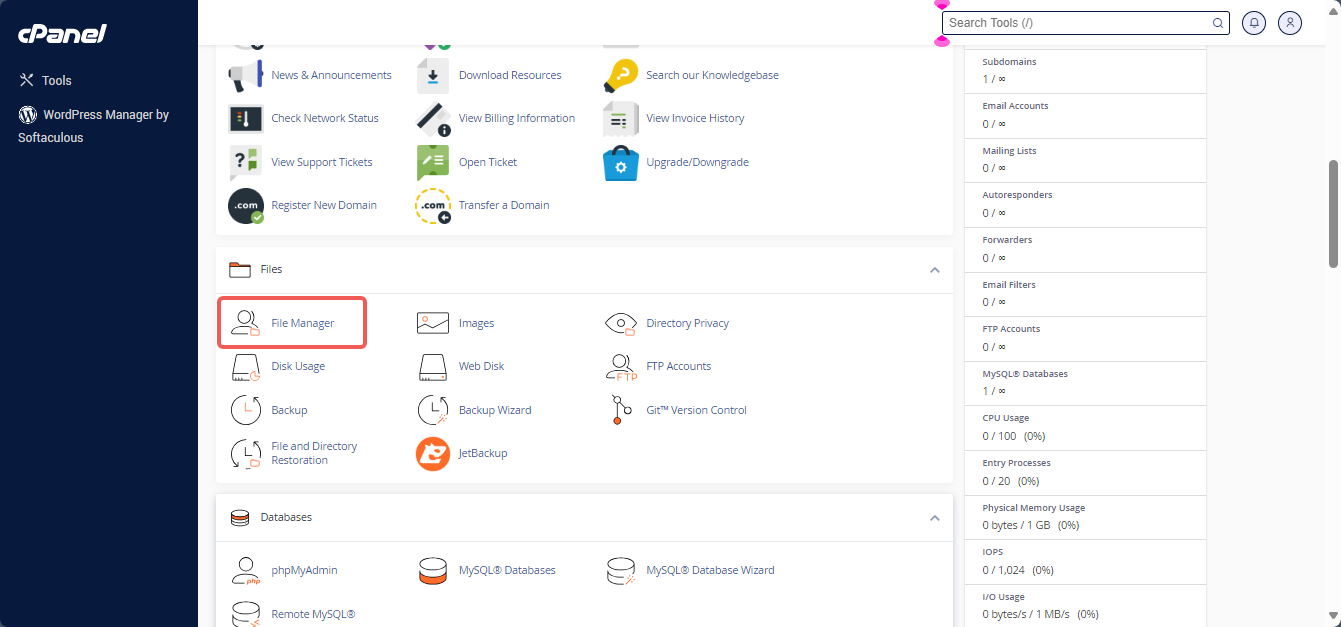
STEP 2: Locate the Files section and click on File Manager.
STEP 3: Open the public_html directory (or your WordPress installation folder).
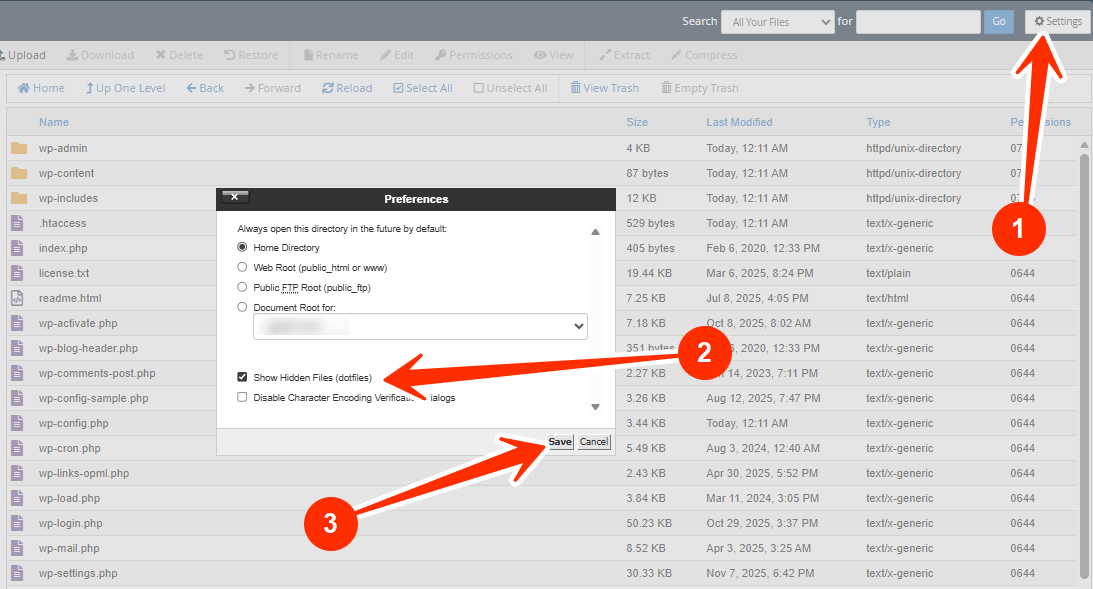
STEP 4: Click on Settings, enable Show Hidden Files (if not already enabled), and click Save.
STEP 5: Locate the file named .maintenance.
STEP 6: Right-click and click Delete.
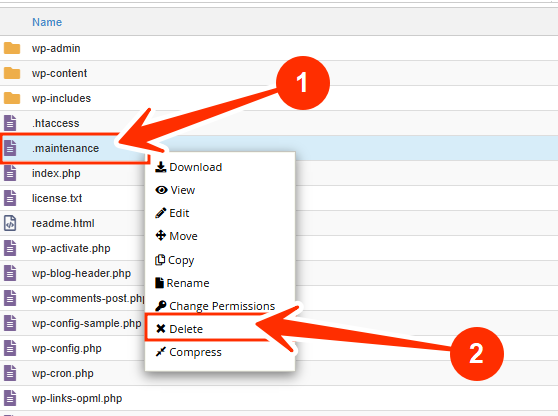
This will immediately remove maintenance mode from your website.
METHOD 2: Clear Browser & Server Cache
Sometimes maintenance mode remains visible due to caching.
STEP 1: Clear your browser cache or open your website in incognito mode.
STEP 2: If you use a caching plugin (e.g. WP Rocket, W3 Total Cache, LiteSpeed Cache):
- Log into your WordPress dashboard.
- Clear all website cache.
STEP 3: If your hosting includes server caching, clear it from your hosting control panel.
METHOD 3: Check If a Plugin Update Failed
A failed plugin update can break WordPress.
STEP 1: Log in to cPanel (Refer to the steps above if you need guidance on accessing your cPanel.)
STEP 2: Locate the Files section and click on File Manager.
STEP 3: Open the public_html directory (or your WordPress installation folder), click on wp-content/plugins, and then contact-form-7.
STEP 4: Rename the recently updated plugin folder.
Example: change contact-form-7 to contact-form-7-disabled.
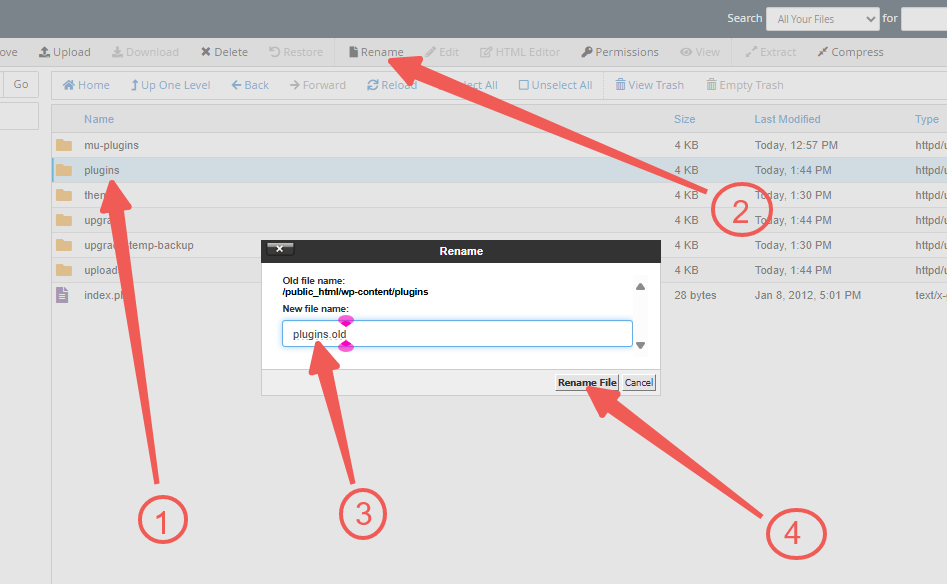
STEP 5: Refresh your website.
This disables the plugin and may fix the error.
METHOD 4: Check File Permissions
Incorrect file permissions may prevent WordPress from deleting the maintenance file automatically.
Recommended permissions:
- Folders: 755
- Files: 644
To fix:
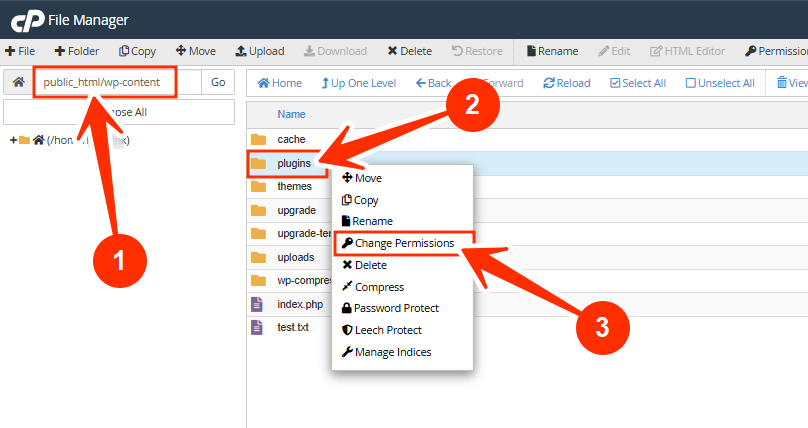
STEP 1: In File Manager, right-click the file/folder.
STEP 2: Click on Plugins, and select Change Permissions.
METHOD 5: Manually Re-run the Update
If the site still shows issues:
STEP 1: Log back into your WordPress dashboard.
STEP 2: Navigate to Dashboard, and click on Updates.
STEP 3: Re-run the failed update.
STEP 4: Ensure stable internet connection while it completes.
How to Prevent WordPress from Getting Stuck Again
To avoid this issue in the future:
- Always backup your website before updates.
- Avoid updating too many plugins at the same time.
- Ensure a stable internet connection during updates.
- Keep PHP version compatible with your WordPress version.
- Avoid closing the browser before updates finish.
Frequently Asked Questions (FAQs)
Q: Is deleting the .maintenance file safe?
Yes, it is a temporary file and safe to delete.
Q: Why does WordPress enter maintenance mode during updates?
To prevent visitors from seeing broken pages while files update.
Q: Can I disable maintenance mode manually?
Yes, deleting the .maintenance file disables it.
Q: Will this affect my website data?
No, this fix doesn’t affect your website content or database.
If you’re still experiencing issues or need help, kindly reach out to our support team. We’re available to assist you 24/7.