Cron jobs allow you to run scheduled commands or scripts automatically at specific times. They’re commonly used for automating tasks like backups, database cleanups, or running scripts without manual input. The Cron Jobs tool in cPanel makes it easy to set up and manage these automated tasks.
Note: You should have a good understanding of Linux commands before creating cron jobs. Always test your script and, if unsure, consult your hosting administrator before scheduling.
How to Create a Cron Job
To create a Cron Job in cPanel:
STEP 1: Log in to cPanel.
There are three methods to log into your cPanel.
- Method 1: Log in to your cPanel directly.
- Method 2: Log in to your cPanel through your Customer Portal.
Through your Customer Portal;
- Log in to your Customer Portal.
- Click on "Log in to cPanel".
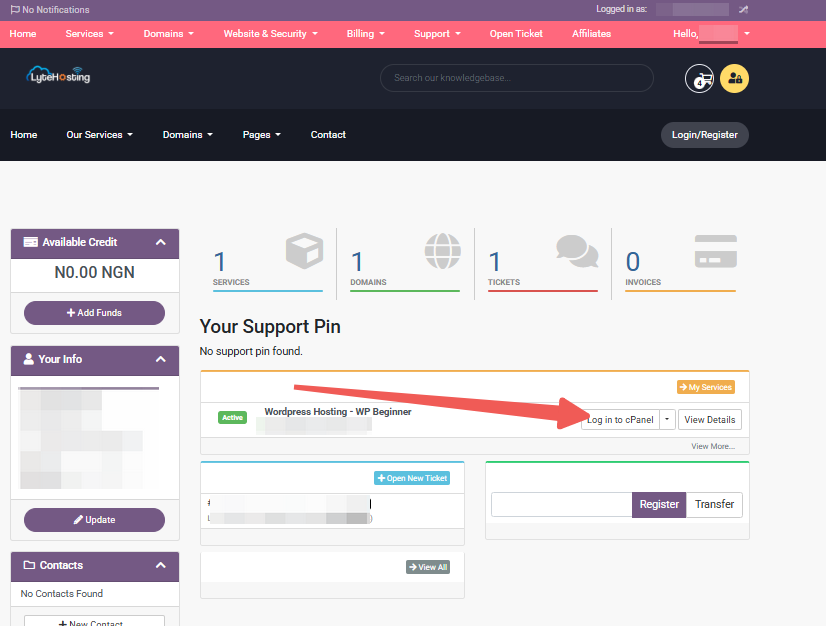
- Method 3: Log in using the details sent to your Email.
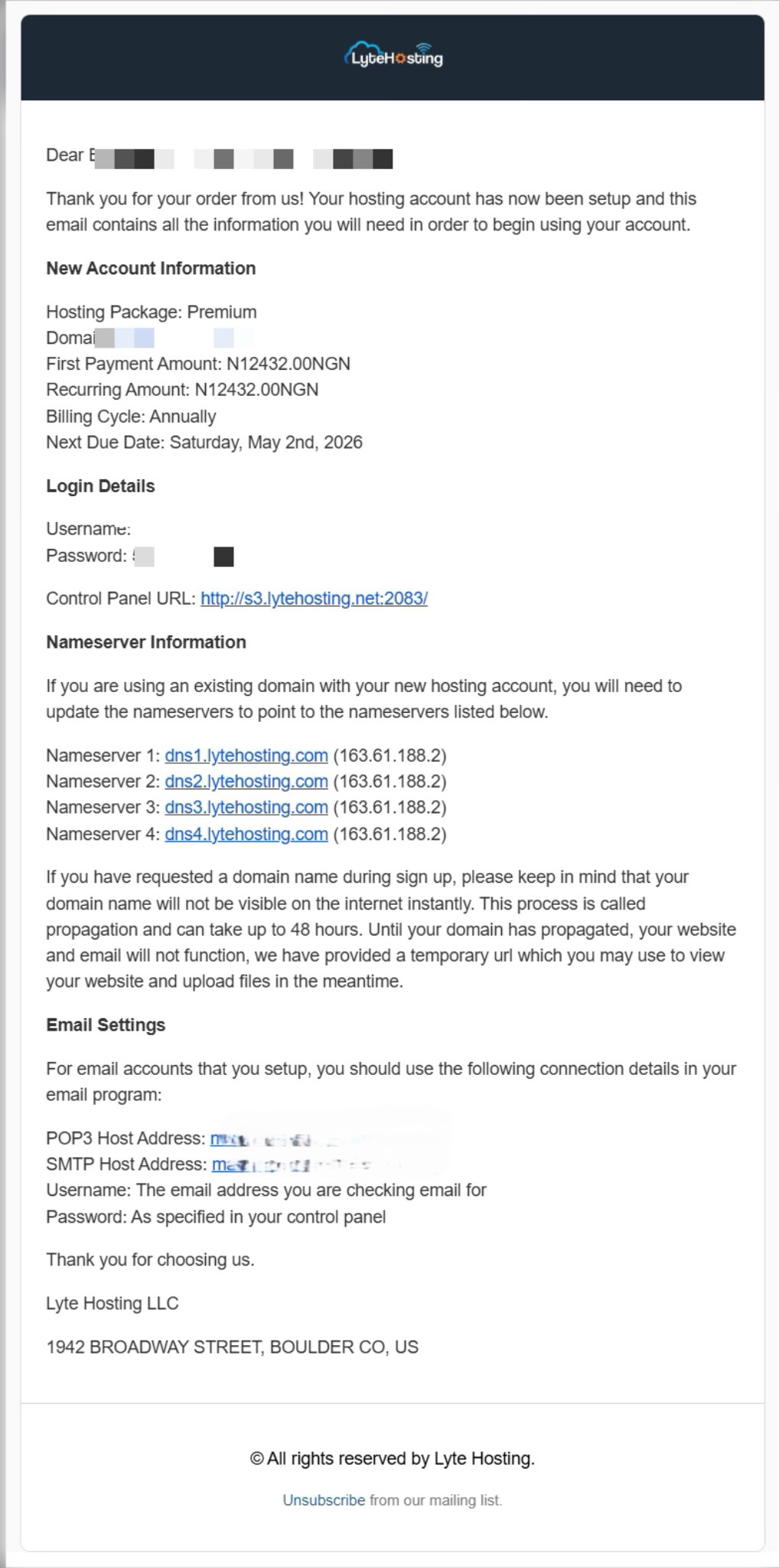
Through your Email;
- When you purchase a hosting plan, your cPanel login details (including username, password, and cPanel URL) are automatically sent to your registered email address. Simply check your inbox (or spam folder), locate the email, and use the provided credentials to access your cPanel.
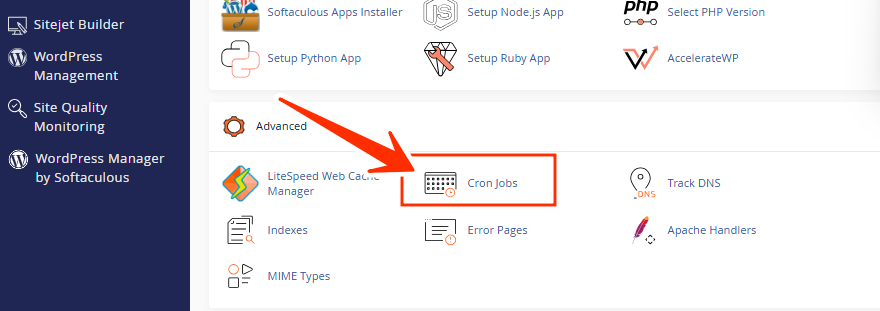
STEP 2: Locate the Advanced section and click on Cron Jobs.
STEP 3: Under Cron Email, ensure the email address listed is valid. If not, enter your preferred email and click Update Email.
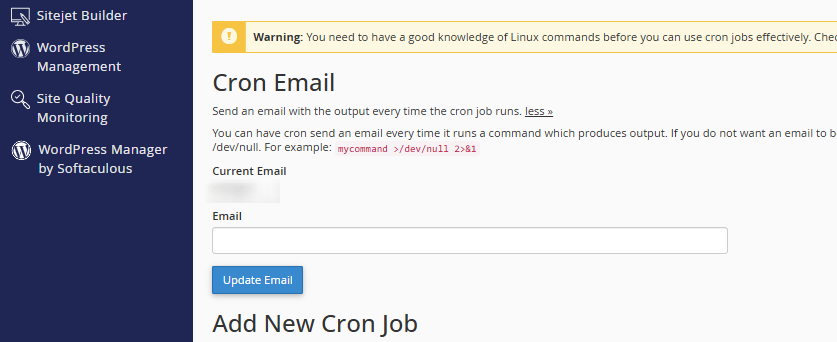
This email will receive notifications whenever your cron job runs.
STEP 4: Under Add New Cron Job, choose how often the command should run:
- Use the Common Settings dropdown for frequently used intervals (e.g., every minute, once a day, once a week).
- Or manually set the schedule using the minute, hour, day, month, and weekday fields.
STEP 5: In the Command field, type the command or script path you want to run.
STEP 6: Click Add New Cron Job.
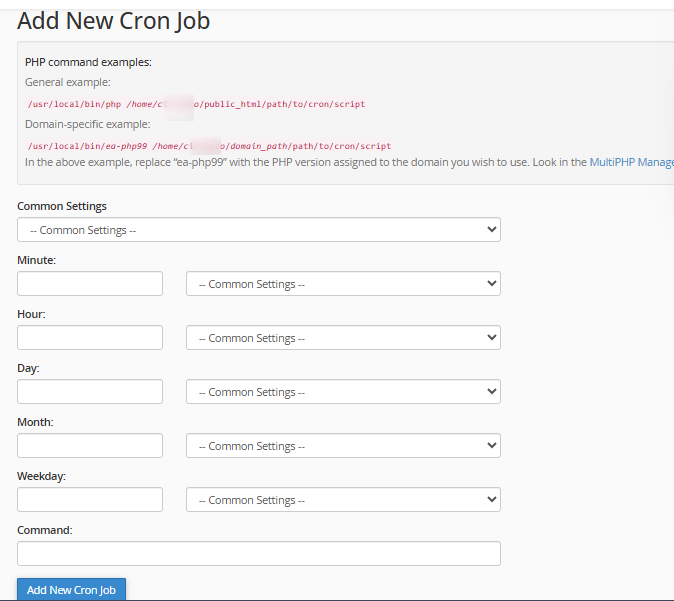
Your cron job is now scheduled and will run at the times you specified.
How to Edit or Delete a Cron Job
To edit/delete a Cron Job in cPanel:
STEP 1: Log in to cPanel (Refer to the steps above if you need guidance on accessing your cPanel.)
STEP 2: Locate the Advanced section and click on Cron Jobs.
STEP 3: Scroll to the Current Cron Jobs list.
STEP 4: Find the cron job you want to modify.
- To edit: Click Edit, adjust the settings, and save changes.
- To delete: Click Delete to remove the cron job completely.

Note: The Edit panel has limited options for scheduling. If you can’t set the interval you need, copy the command, delete the job, and then recreate it with the correct schedule.
Helpful Tips:
- Always test your command manually before automating it.
- Use descriptive comments in your scripts so you remember their purpose.
- Avoid scheduling cron jobs too frequently, as they may affect server performance.
- Redirect cron job outputs to a log file for easier troubleshooting.
Frequently Asked Questions (FAQ)
Q: What is a cron job?
A cron job is a scheduled task that automatically runs commands or scripts at predefined times on your hosting server.
Q: Do I need technical knowledge to use cron jobs?
Yes. You should be familiar with Linux commands and paths. If you’re unsure, it’s best to contact support before creating cron jobs.
Q: Can I run PHP scripts using cron jobs?
Yes. To run a PHP script, use a command like:
/usr/local/bin/php /home/username/public_html/script.php
Q: How often can I run a cron job?
You can run cron jobs as frequently as every minute, though it’s best to only run them as often as necessary to reduce server load.
Q: Why am I not receiving cron job emails?
Check that you set a valid email under Cron Email in cPanel. Also, ensure your script generates output, if there’s no output, no email will be sent.
Q: Can I pause a cron job without deleting it?
No. To stop a cron job temporarily, you’ll need to delete it and recreate it later. Alternatively, you can comment out the command in the cron job.
Q: What happens if I enter the wrong command?
The cron job will fail to execute properly. Always test commands in your terminal before scheduling them.
Need assistance with cron jobs? Our 24/7 Support Team is always ready to help.