Website Malware is one of the most common reasons sites get blacklisted, hacked, or suspended by hosting providers. Many website owners don’t even realize their site is infected until they lose traffic, face downtime, or receive warnings from search engines.
In this article, you’ll learn how to detect malware on a website properly, whether you use WordPress, another CMS, or a custom-built site.
What is Website Malware?
Website Malware is malicious code injected into your website without your permission. It is often used to:
- Redirect visitors to spam or phishing sites.
- Steal user data or login details.
- Send malicious emails.
- Use your server for illegal activities.
- Damage your SEO rankings.
Common sources of malware include outdated plugins, insecure themes, weak passwords, or compromised hosting environments.
Signs Your Website Might Be Infected
Before scanning, watch for these common warning signs:
- Your website redirects to unknown or spam websites.
- Google displays a “Deceptive site” or “This site may harm your computer” warning.
- Unusual ads or pop-ups appear on your site.
- Website becomes extremely slow or crashes frequently.
- You notice unknown files or scripts on your server.
- Spam emails being sent from your domain.
- Search results show suspicious content you didn’t publish.
If you notice any of these, proceed immediately with the detection steps.
METHOD 1: Use Online Malware Scanners
Online scanners check your website remotely without requiring access to your hosting account.
Recommended tools include:
- Sucuri SiteCheck
- VirusTotal
- URLVoid
- Quttera
STEPS:
1. Copy your website URL (e.g. https://yourwebsite.com).
2. Paste it into the malware scanner website.
3. Start the scan.
4. Review the report for:
- Malware warnings
- Blacklisting status
- Injected scripts
- Hidden threats
NOTE: Online scanners cannot detect every type of malware because some infections are hidden inside your server files.
METHOD 2: Scan Through Your Hosting Control Panel
Most hosting control panels (like cPanel) have built-in security tools.
Using cPanel Imunify360:
1. Log in to cPanel.
There are three methods to log into your cPanel.
- Method 1: Log in to your cPanel directly.
- Method 2: Log in to your cPanel through your Customer Portal.
Through your Customer Portal;
- Log in to your Customer Portal.
- Click on "Log in to cPanel".
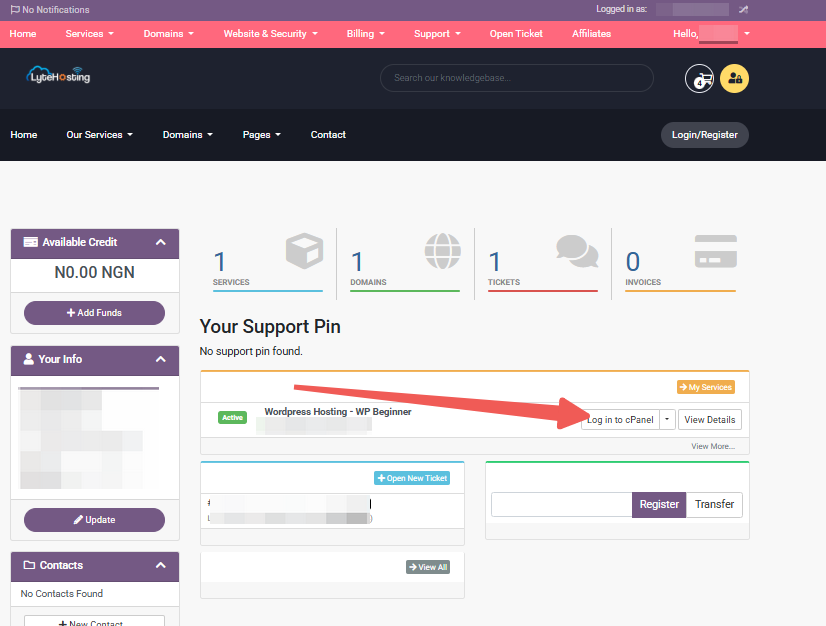
- Method 3: Log in using the details sent to your Email.
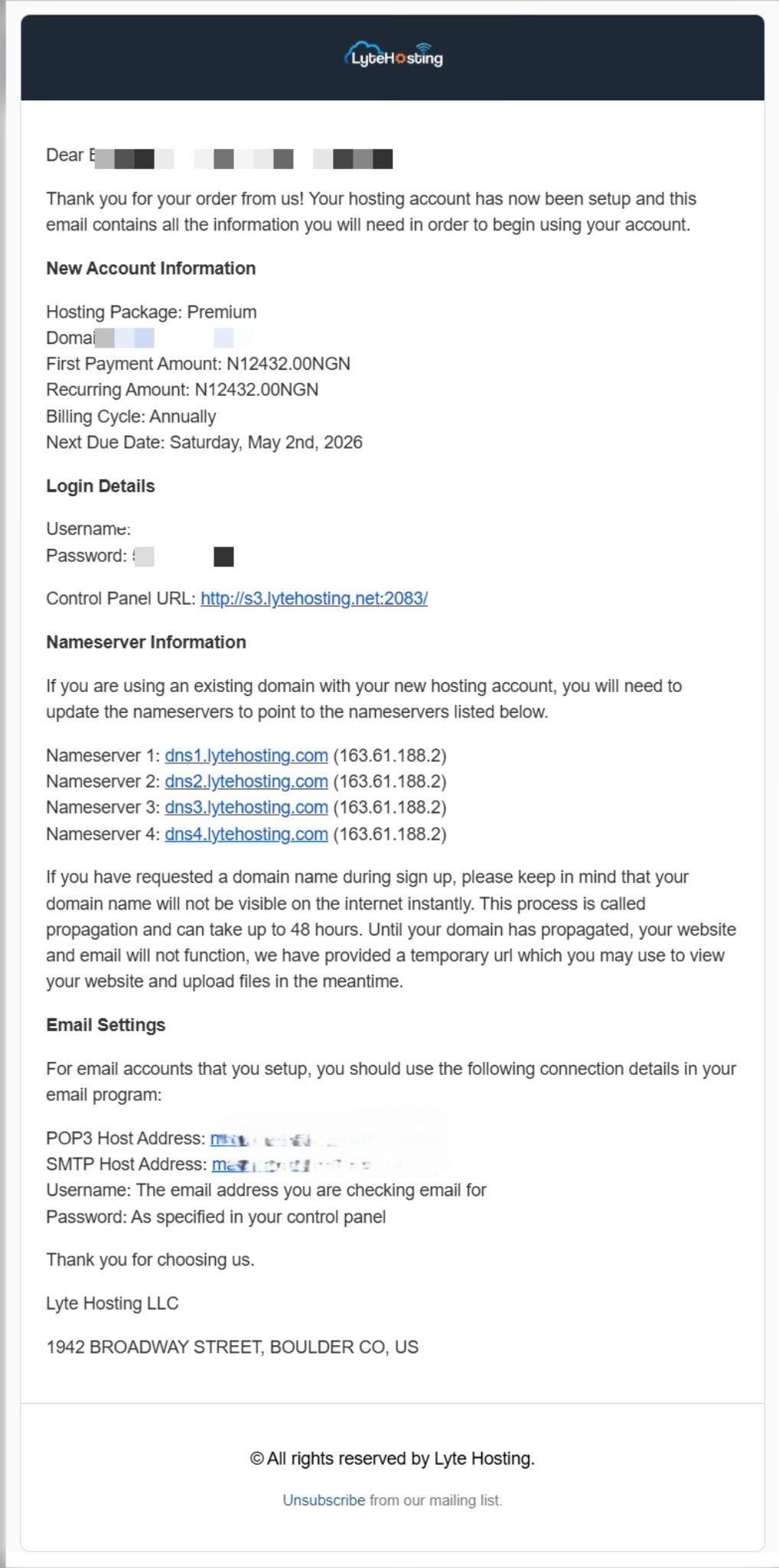
Through your Email;
- When you purchase a hosting plan, your cPanel login details (including username, password, and cPanel URL) are automatically sent to your registered email address. Simply check your inbox (or spam folder), locate the email, and use the provided credentials to access your cPanel.
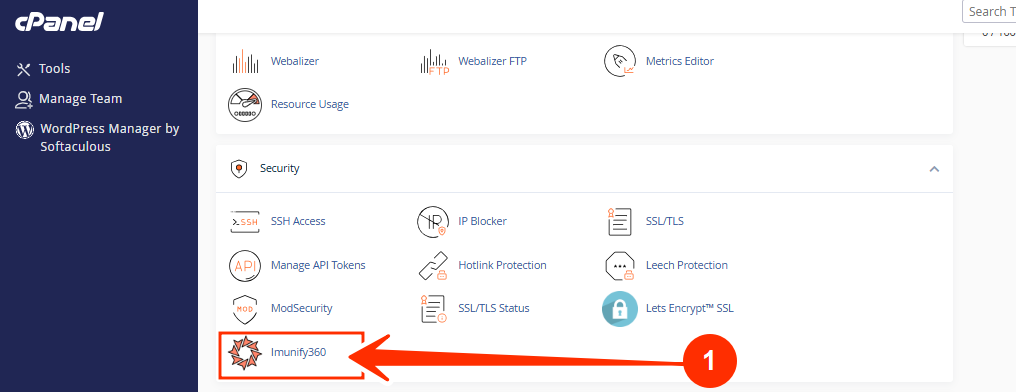
2. Locate the Security section, and click on Imunify360.
3. Click on Scan.
4. Allow it to scan your website files.
5. View detected malware reports and infected file locations.
METHOD 3: Check Files Manually via File Manager or FTP
For severe infections, manual inspection helps detect hidden malware.
Files and locations to check:
- /public_html/ directory
- /wp-content/ folder (for WordPress)
- .htaccess file
- Theme folders and plugins
- /uploads/ folder
Signs of malware in files:
- Random or strange file names
- Recently modified files without your knowledge
- Long strings of encoded text like:
eval(base64_decode(...)) - Files that don’t belong to your CMS
If you spot suspicious files, do not delete immediately, backup first.
METHOD 4: Use WordPress Security Plugins (For WordPress Sites)
If your site runs on WordPress, use dedicated security plugins such as:
- Wordfence
- Sucuri Security
- MalCare
- iThemes Security
How:
- Install a security plugin from the WordPress dashboard.
- Run a full site scan.
- Review detected malicious files and code.
- Follow the plugin’s recommended steps to clean or quarantine malware.
METHOD 5: Check Google Search Console
Google may already know your site is infected before you do.
- Go to Google Search Console.
- Check Security & Manual Actions and Security Issues.
- Review any warnings related to hacked content or malware.
This helps you confirm if your site has been flagged by Google.
Common Places Hackers Hide Malware
Malware is often hidden in:
- Theme files (header.php, functions.php)
- Upload folders (/uploads/)
- Plugins
- Core CMS files
- Database entries
- .htaccess files
Hackers hide it where people often overlook.
Common Mistakes to Avoid
- Only scanning once instead of regularly.
- Ignoring small performance issues.
- Using cracked or nulled themes/plugins.
- Not checking database infections.
- Deleting random files without backup.
Frequently Asked Questions (FAQs)
Q: How often should I scan my website for malware?
At least once a week. For business or ecommerce websites, daily automated scans are recommended.
Q: Can malware be completely hidden?
Yes. Some advanced malware only activates under certain conditions. That’s why combining multiple scanning methods is important.
Q: Will deleting suspicious files always fix malware?
No. Some malware reinfects your site. A full scan and cleanup is required.
Q: Can malware affect my hosting account?
Yes. Malware can spread to other websites on the same hosting account if not handled quickly.
Q: Do I need technical skills to detect malware?
Basic detection is easy using scanners. Advanced cases may require technical experience.
If you need help, kindly reach out to our Support Team.