Your website files are the foundation of everything your visitors see online, your design, content, and functionality. However, if any of these files are modified without your knowledge, it could indicate a security breach, malware injection, or unauthorized access.
Detecting unusual file changes early helps you act fast to remove threats and prevent data loss or downtime. In this guide, we’ll show you how to monitor and detect unauthorized file changes in your hosting account.
Importance of Detecting File Changes
Cybercriminals often modify files to insert malicious code, create hidden backdoors, or redirect visitors to unsafe websites. If left unnoticed, these changes can:
- Compromise your website’s data.
- Spread malware to your visitors.
- Get your website blacklisted by Google.
- Damage your brand’s credibility.
Regularly checking for unexpected file modifications is one of the easiest ways to keep your hosting account secure.
Common Signs of Unusual File Changes
Before diving into detection methods, watch out for these warning signs:
- Your website layout suddenly changes.
- You see unknown files or folders in your File Manager.
- Suspicious pop-ups or redirects appear on your site.
- Files show recent modification dates you didn’t trigger.
- Antivirus or malware scanners flag infected files.
If you notice any of these, it’s time to investigate.
How to Detect Unusual File Changes
There are several methods to track and detect unauthorized modifications in your hosting account.
OPTION 1: Use cPanel’s File Manager
If you use cPanel, you can manually check file changes:
STEP 1: Log in to cPanel.
There are three methods to log into your cPanel.
- Method 1: Log in to your cPanel directly.
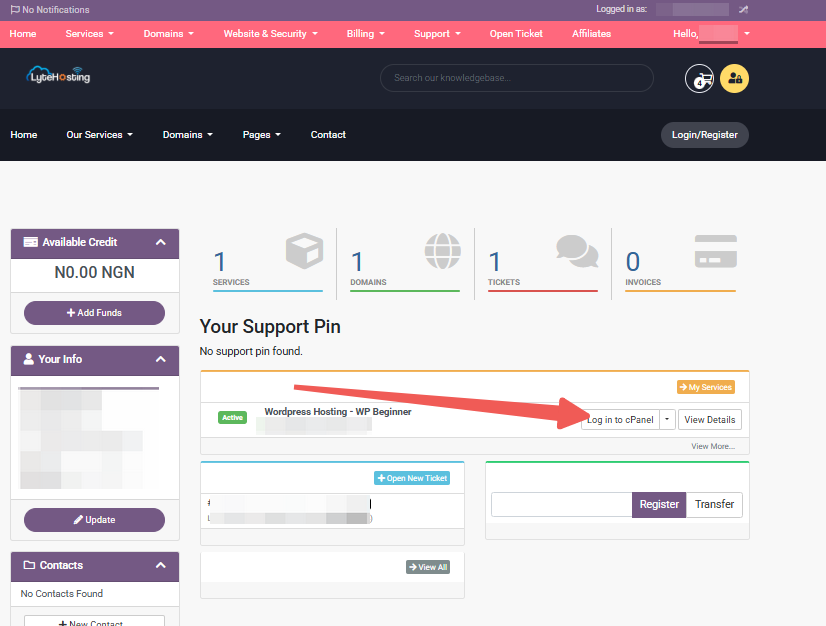
- Method 2: Log in to your cPanel through your Customer Portal.
Through your Customer Portal;
- Log in to your Customer Portal.
- Click on "Log in to cPanel".
- Method 3: Log in using the details sent to your Email.
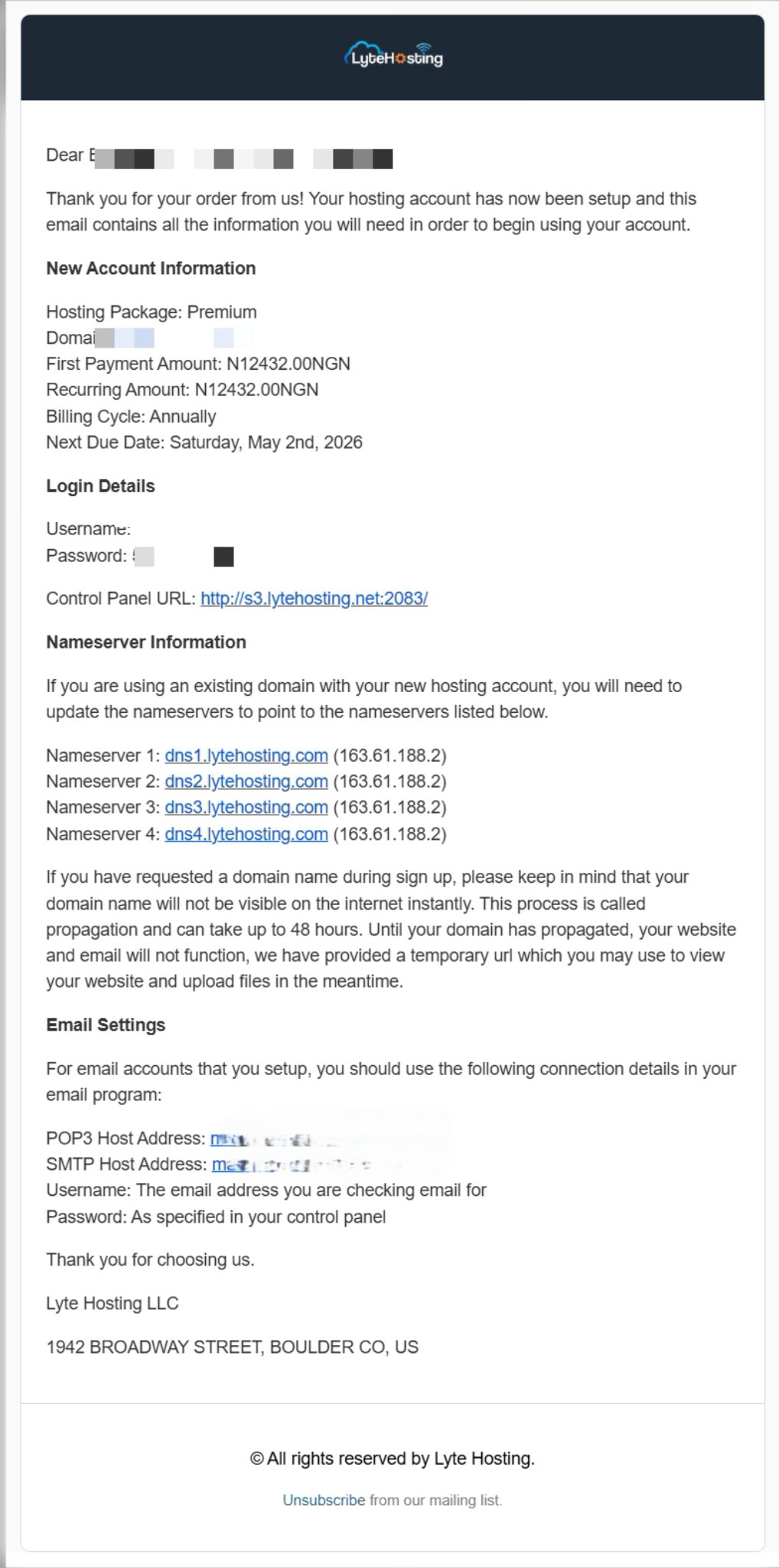
Through your Email;
- When you purchase a hosting plan, your cPanel login details (including username, password, and cPanel URL) are automatically sent to your registered email address. Simply check your inbox (or spam folder), locate the email, and use the provided credentials to access your cPanel.
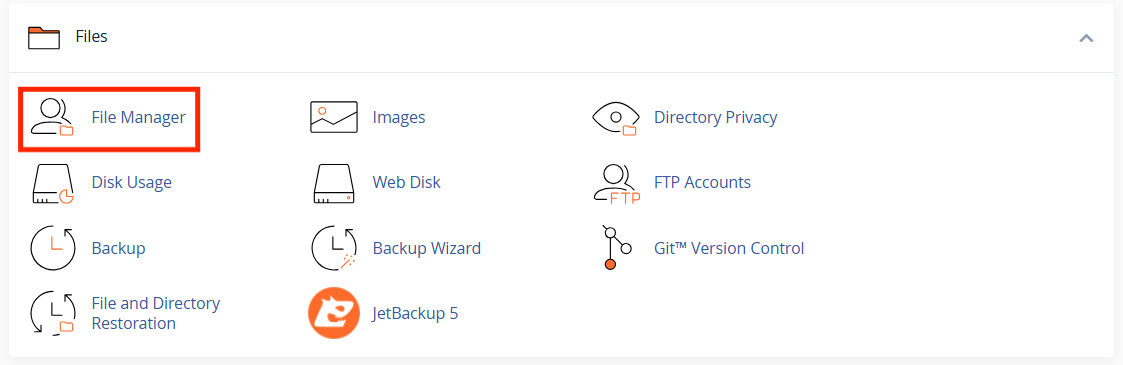
STEP 2: In the Files section, click on File Manager.
STEP 3: Look at the “Last Modified” column for each file.
STEP 4: Sort files by modification date to see recent changes.
If you spot files updated recently that you didn’t edit, inspect them carefully.
Tip: Compare suspicious files with older backups to identify added or removed code.
OPTION 2: Use File Integrity Monitoring Tools
File integrity monitoring (FIM) tools automatically scan your hosting account and alert you when a file changes unexpectedly.
Popular tools and plugins include:
- Wordfence (WordPress) – Scans your website and compares files to original WordPress versions.
- Sucuri Security – Detects and reports unauthorized file changes in real time.
- Imunify360 (cPanel Security Tool) – Continuously monitors server files and blocks malicious uploads.
These tools save time by running continuous checks and sending email alerts when changes occur.
OPTION 3: Enable Hosting Provider Security Scans
Most modern hosting control panels (like cPanel, Plesk, or DirectAdmin) come with built-in malware and file monitoring features.
You can:
- Log in to your hosting dashboard.
- Look for a Security, Virus Scanner, or Malware Protection section.
- Run a Full Scan to detect altered or infected files.
If your hosting plan includes automated scanning, ensure it’s enabled and scheduled daily or weekly.
OPTION 5: Use Version Control Systems (Optional for Developers)
If your website runs on a development workflow, using a version control system like Git can help. Git tracks all file changes, showing who modified what and when.
This isn’t just for developers, it’s also useful for maintaining a record of legitimate updates vs. suspicious ones.
OPTION 6: Compare Your Files with a Clean Backup
Backups are your strongest reference point when checking for tampering.
To identify suspicious modifications:
- Download your current site files.
- Compare them with a previous clean backup using tools like WinMerge or Diffchecker.
- Look for unexpected code insertions or changes.
If you find malware or injected code, restore your site from a clean backup.
How to Respond to Suspicious File Changes
If you detect unauthorized file modifications:
- Change your passwords immediately (hosting, cPanel, CMS admin, and FTP).
- Scan your website for malware using a plugin or hosting security tool.
- Restore your site from a clean backup if necessary.
- Update your CMS, plugins, and themes to their latest versions.
- Contact your hosting support team if you suspect a deeper intrusion.
Frequently Asked Questions (FAQs)
Q: Can malware hide inside normal website files?
Yes. Hackers often inject malicious code inside legitimate files (like index.php or functions.php) to avoid detection.
Q: How often should I check for file changes?
Ideally, enable real-time monitoring. If you’re checking manually, review your files at least once a week.
Q: What’s the safest way to prevent file tampering?
Keep your software up to date, use strong passwords, install a web application firewall (WAF), and enable file integrity monitoring tools.