When a website is not functioning correctly, errors in the code or server configuration are often the cause. However, by default, many hosting accounts hide these errors, making it difficult to identify what’s wrong.
Enabling error reporting allows your website to display or log PHP errors, warnings, and notices, helping you troubleshoot issues effectively. This article explains how to safely enable error reporting on your hosting account.
What is Error Reporting?
Error reporting is a feature in PHP (the language most websites use) that notifies you about:
- Syntax errors in your code
- Deprecated functions
- Warnings about potential problems
- Fatal errors that break your site
With error reporting enabled, you can see what exactly is causing your website to fail, instead of getting a blank page or generic error message.
Why You Should Enable Error Reporting
- Helps identify broken plugins or themes
- Speeds up troubleshooting and debugging
- Prevents hours of guesswork for developers
- Essential for testing and development environments
Note: On live websites, displaying errors publicly can expose sensitive information. For live sites, it is recommended to log errors instead of showing them.
How to Enable Error Reporting
There are two main ways to enable error reporting: via your PHP configuration (php.ini) or via your WordPress or website code.
METHOD 1: Enable Error Reporting via PHP.ini (Recommended for Hosting Accounts)
STEP 1: Log in to cPanel.
There are three methods to log into your cPanel.
- Method 1: Log in to your cPanel directly.
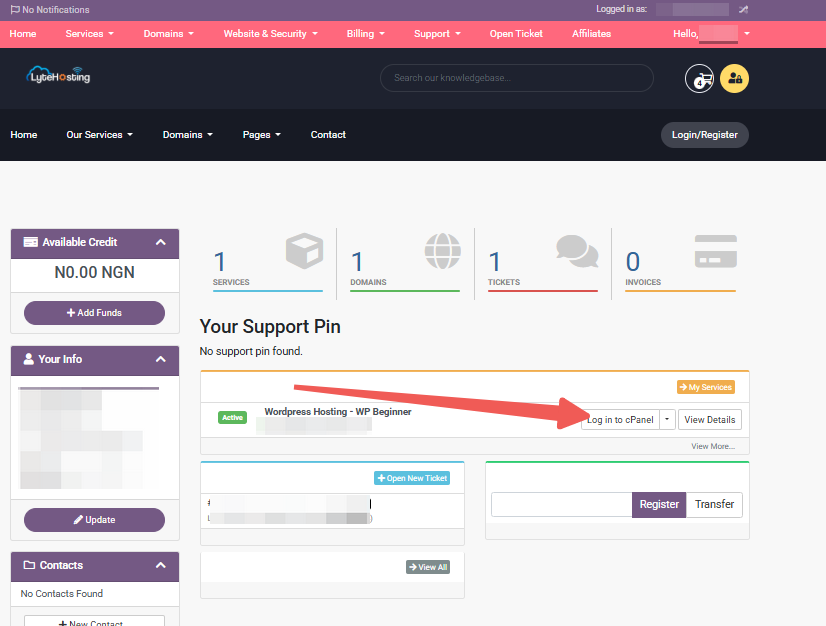
- Method 2: Log in to your cPanel through your Customer Portal.
Through your Customer Portal;
- Log in to your Customer Portal.
- Click on "Log in to cPanel".
- Method 3: Log in using the details sent to your Email.
Through your Email;
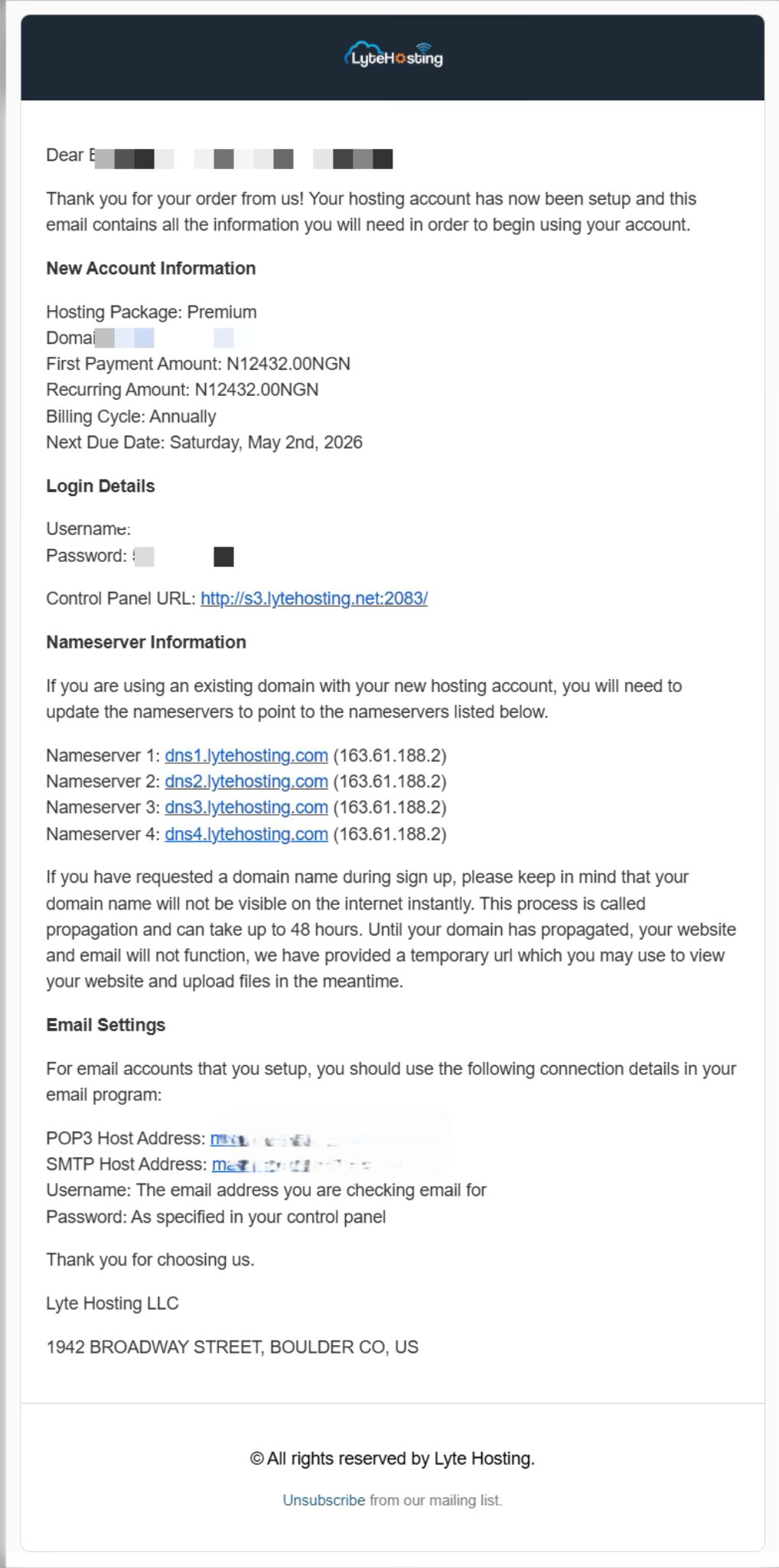
- When you purchase a hosting plan, your cPanel login details (including username, password, and cPanel URL) are automatically sent to your registered email address. Simply check your inbox (or spam folder), locate the email, and use the provided credentials to access your cPanel.
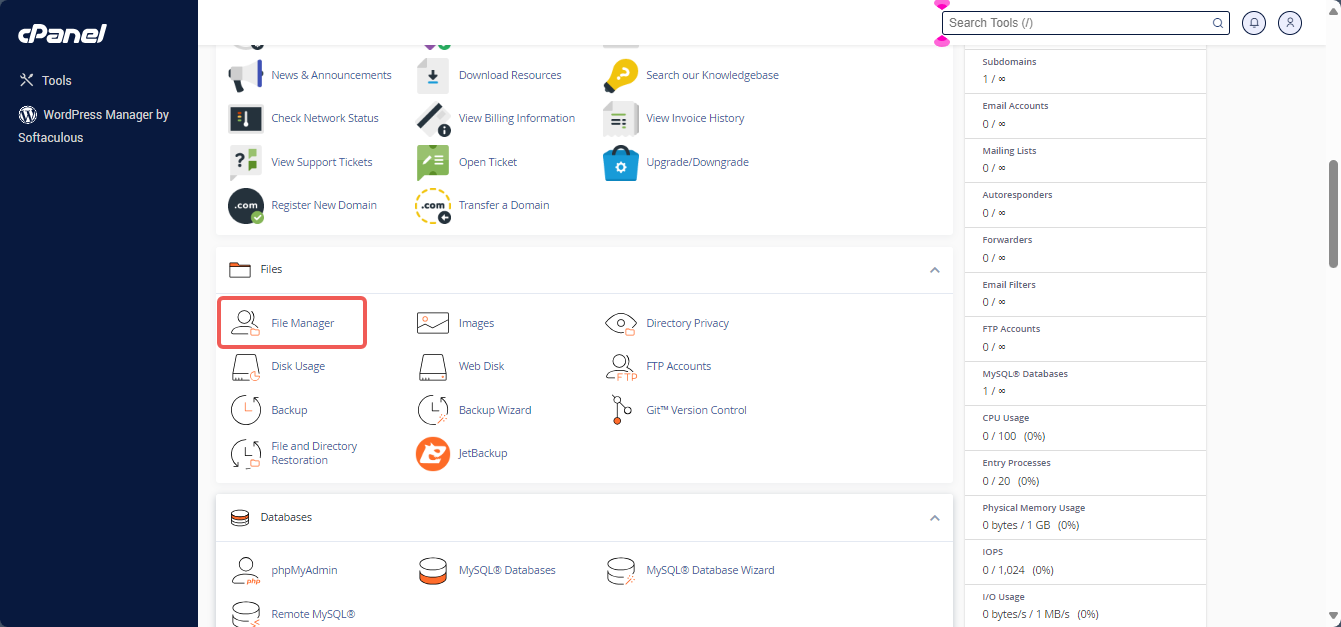
STEP 2: In the Files section, click on File Manager.
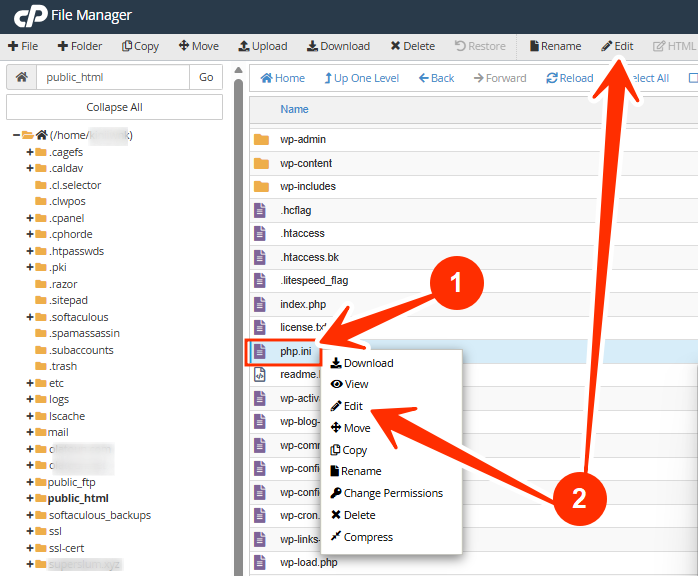
STEP 3: Navigate to your website’s main directory (usually public_html).
STEP 4: Look for a file called php.ini (create one if it doesn’t exist), right click and then click Edit.
STEP 5: Add or update the following lines:
display_errors = On
display_startup_errors = On
error_reporting = E_ALL
STEP 6: Click on Save Changes, and restart your web server or PHP service if required.
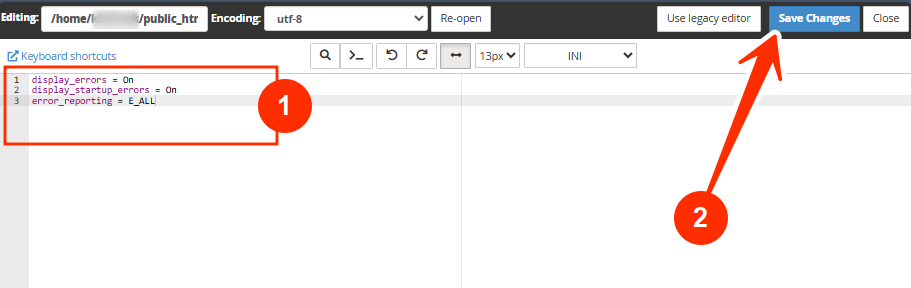
This will display all errors on your website. For live websites, consider logging errors instead:
log_errors = On
error_log = /home/yourusername/public_html/error_log.log
This writes errors to a file instead of showing them publicly.
METHOD 2: Enable Error Reporting via WordPress or PHP Code
For WordPress sites or custom PHP applications:
STEP 1: Log in to cPanel (Refer to the steps above if you need guidance on accessing your cPanel.)
STEP 2: Open your website folder.
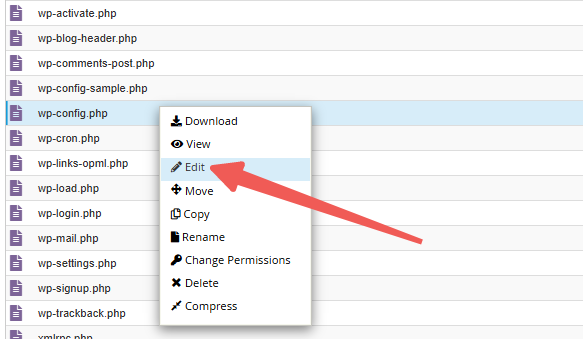
STEP 3: Locate the wp-config.php file (for WordPress) or your main PHP file, right click and click on Edit.
STEP 4: Add the following lines above the “That's all, stop editing!” line in WordPress:
define('WP_DEBUG', true);
define('WP_DEBUG_LOG', true);
define('WP_DEBUG_DISPLAY', true);
For custom PHP scripts, add at the top of your file:
<?php
ini_set('display_errors', 1);
ini_set('display_startup_errors', 1);
error_reporting(E_ALL);
?>
STEP 5: Save the file and refresh your website.
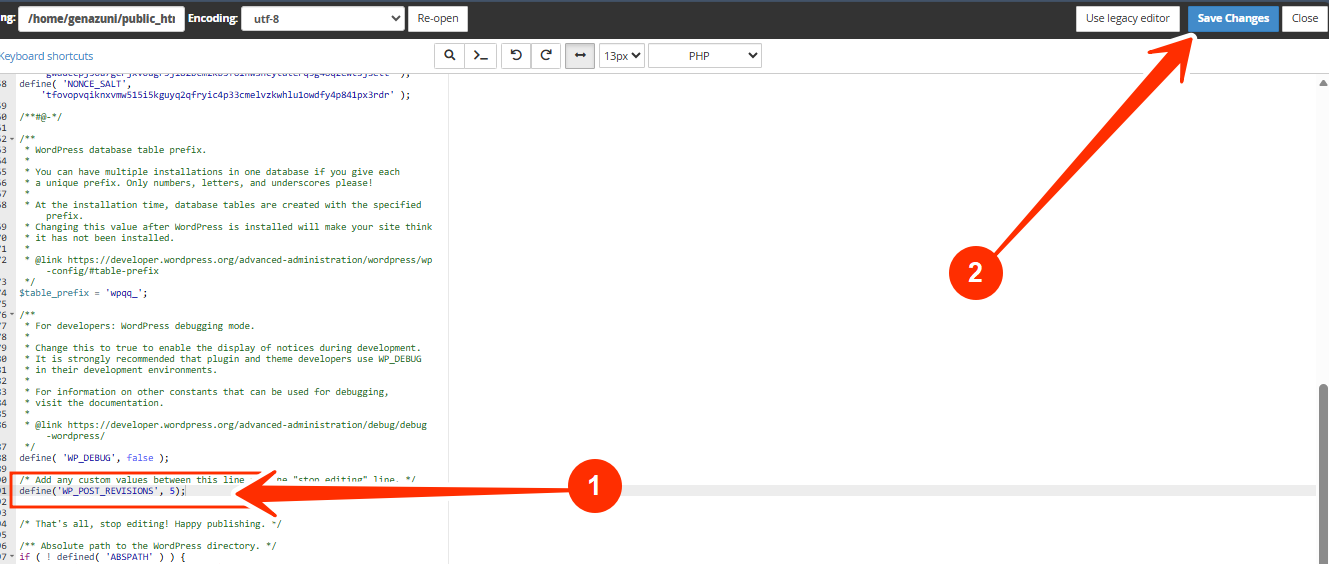
Your website will now show errors for easier troubleshooting.
NOTE:
- Do not display errors on live websites, this can expose sensitive server paths or data to hackers.
- Use logging instead to safely capture errors for review.
- Always disable error display after resolving issues on production sites.
Example: To disable error display but keep logging:
ini_set('display_errors', 0);
ini_set('log_errors', 1);
Frequently Asked Questions (FAQs)
Q: What types of errors will be displayed?
PHP errors, warnings, notices, and deprecated function messages.
Q: Can enabling error reporting break my website?
No, it does not change your code; it only shows or logs errors.
Q: Should I leave error reporting on for my live website?
No. On live sites, use error logging instead of displaying errors to visitors.
Q: Where can I find the error logs?
- If using php.ini logging, check the path you set in error_log
- For WordPress, error logs are stored in wp-content/debug.log if WP_DEBUG_LOG is enabled
Q: Does enabling error reporting fix errors automatically?
No, it only shows you what is wrong so you can fix it.
If you are unsure about enabling error reporting safely, or your website is live, kindly reach out to our support team for assistance.