By default, servers are designed to execute PHP only in files with the .php extension. While it is strongly recommended to rename your files to .php or .shtml whenever possible, there are situations where you may want to allow PHP to run inside .html files.
This guide will explain why you might need PHP in HTML files, the risks involved, and the steps to enable it on Linux servers using a .htaccess file.
Note: This is an advanced setup. Using .htaccess in this way forces your server to process all HTML pages before displaying them, which can impact performance. If you’re not familiar with advanced configurations, we recommend consulting a web developer.
Why Run PHP in HTML Files?
There are specific cases where enabling PHP inside .html files becomes useful, such as:
- Using reCaptcha or API verification – Some modern APIs require server-side PHP processing.
- Enhancing legacy websites – Older sites built entirely with .html extensions may need PHP without renaming files.
- Avoiding broken links – Changing .html to .php can disrupt existing JavaScript functions or break links pointing to .html pages.
Whenever possible, create new files with the .php extension instead of modifying .html files. However, if you must keep .html, follow the steps below.
How to Enable PHP in HTML Files (Linux Servers)
LyteHosting servers support multiple PHP versions, and the method depends on which version your website is running.
STEP 1: Log in to cPanel.
There are three methods to log into your cPanel.
- Method 1: Log in to your cPanel directly.
- Method 2: Log in to your cPanel through your Customer Portal.
Through your Customer Portal;
- Log in to your Customer Portal.
- Click on "Log in to cPanel".
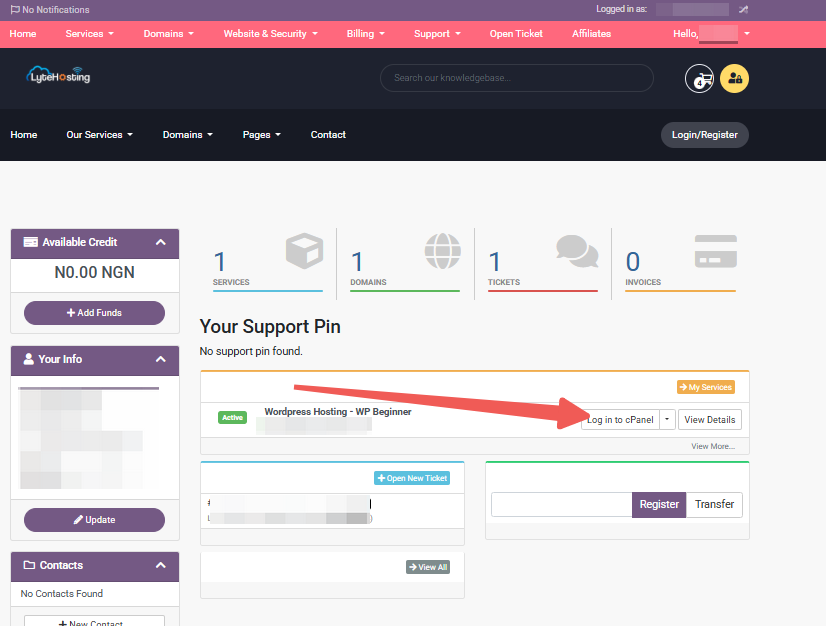
- Method 3: Log in using the details sent to your Email.
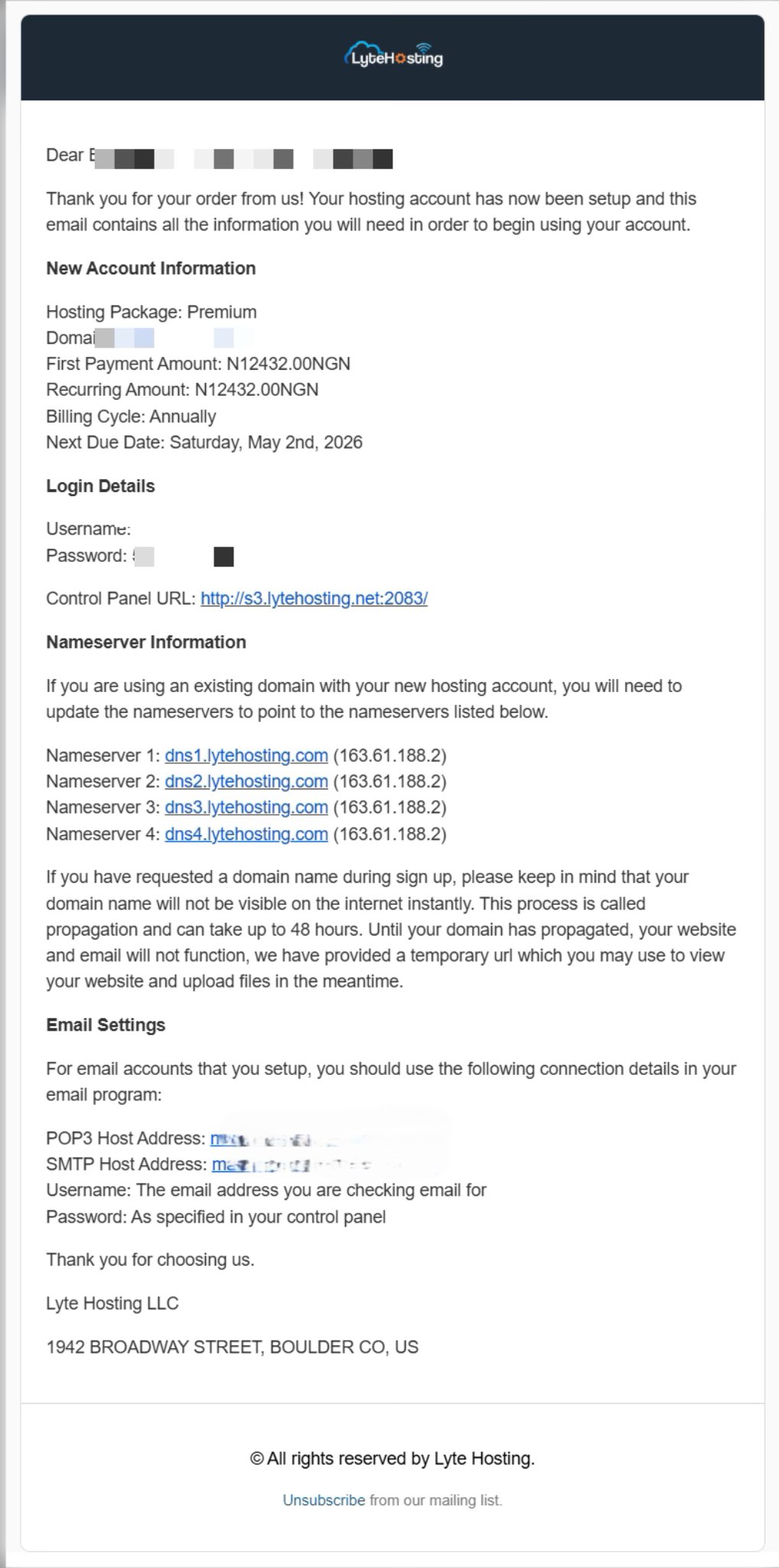
Through your Email;
- When you purchase a hosting plan, your cPanel login details (including username, password, and cPanel URL) are automatically sent to your registered email address. Simply check your inbox (or spam folder), locate the email, and use the provided credentials to access your cPanel.
STEP 2: Locate the Files section and click on File Manager.
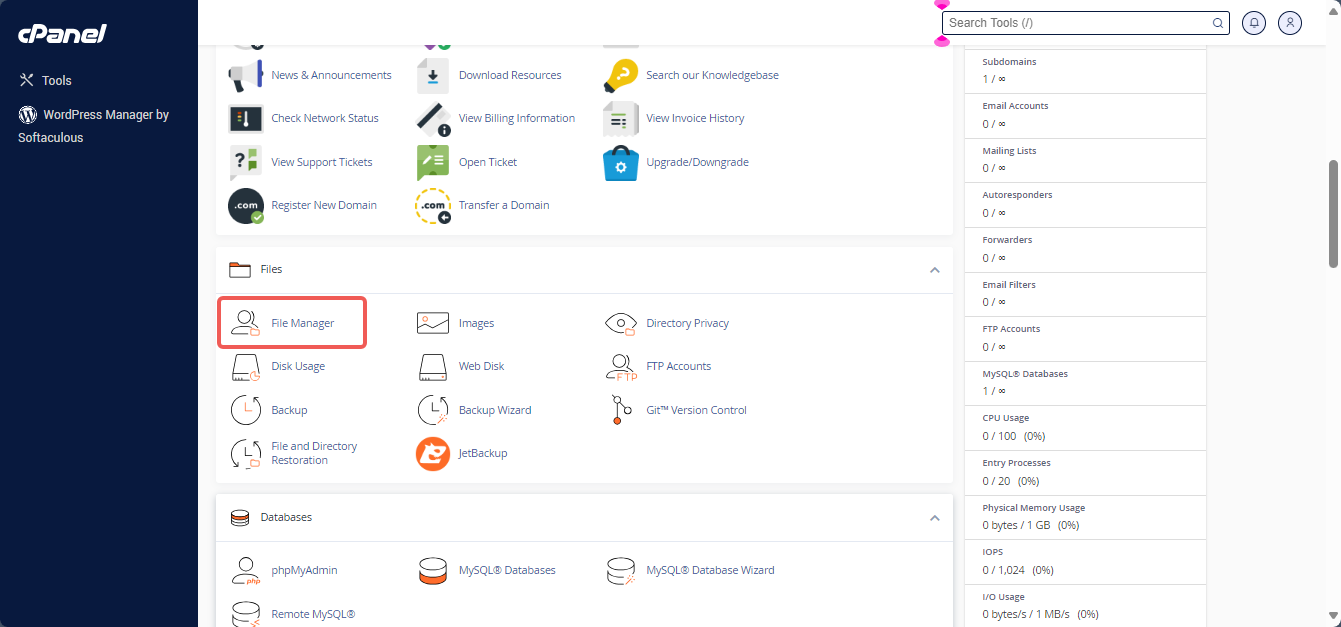
STEP 3: Navigate to your website’s document root (for your main domain, this is usually public_html).
STEP 4: Locate the .htaccess file. If it doesn’t exist, create one.
STEP 5: Select the file and click Edit from the top menu.
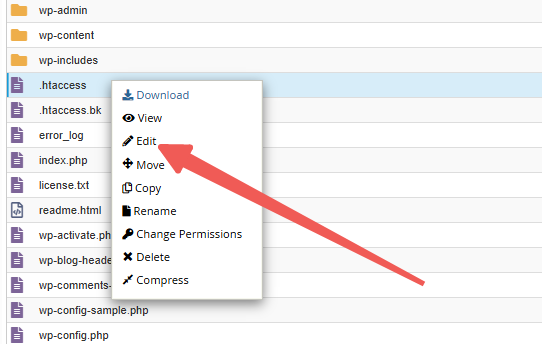
For detailed guidance, see How to Edit Your .htaccess File
STEP 6: At the top of your .htaccess file, insert the appropriate line based on your PHP version.
For example:
AddHandler application/x-httpd-ea-php80 .html .htm
Here are common options:
AddHandler application/x-httpd-ea-php54 .html .htm
AddHandler application/x-httpd-ea-php55 .html .htm
AddHandler application/x-httpd-ea-php56 .html .htm
AddHandler application/x-httpd-ea-php70 .html .htm
AddHandler application/x-httpd-ea-php71 .html .htm
AddHandler application/x-httpd-ea-php72 .html .htm
AddHandler application/x-httpd-ea-php73 .html .htm
AddHandler application/x-httpd-ea-php74 .html .htm
AddHandler application/x-httpd-ea-php80 .html .htm
STEP 7: Click Save Changes in the Code Editor.
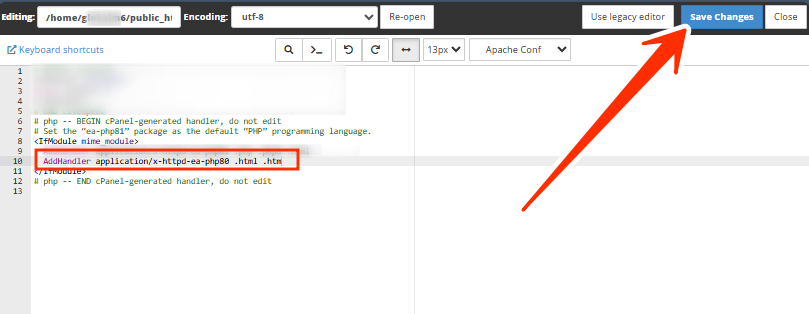
STEP 8: Reload your website. PHP scripts inside .html files should now execute.
FAQs About Running PHP in HTML
Q: Is it safe to run PHP in HTML files?
It can be safe, but it increases server load since every .html file must be parsed. For performance and security, only use this method when necessary.
Q: Will enabling PHP in HTML affect SEO?
No, your SEO rankings won’t be affected. However, broken links from renaming files could harm SEO, which is why keeping .html files can sometimes be the better option.
Q: Can I still upgrade PHP versions after enabling this?
Yes. You can change your PHP version through MultiPHP Manager in cPanel, but you may need to update the handler line in .htaccess.
Q: What should I do if my site breaks after editing .htaccess?
Restore a backup of the .htaccess file or remove the PHP handler line. If issues persist, reach out for professional assistance.
If you need assistance configuring PHP for .html files, kindly reach out to our 24/7 Support Team.